
How to Check If Your Website Is Indexed in Google October 2026
Need to verify whether Googlebot has crawled and indexed your new website or recently updated blog posts? Discover verified diagnostic methods, Search Console URL inspection tools, and rapid indexing solutions in October 2026.
The Google indexing status guide visual above highlights essential diagnostic tools used to verify web page indexation in October 2026.
Checking if your website is indexed in Google is the foundational step of search engine optimization. If Googlebot cannot discover, render, and index your web pages, your website will fail to appear in organic search results.
Whether you launched a new blog or published fresh articles, verifying indexing status ensures your organic traffic growth remains active. Utilizing Google Search Console and native search operators allows webmasters to diagnose indexing roadblocks immediately.
What Does It Mean When a Website Is Indexed in Google?
Google indexing means Googlebot has crawled your web page, analyzed its textual content and schema markup, and stored it in the Google
Search index database. Once stored, your web page becomes eligible to appear in organic search engine results pages (SERPs) for relevant query keywords.
Crawling and indexing are separate search engine processing phases. Crawling involves Googlebot discovering links across the web, whereas indexing involves rendering HTML scripts, evaluating content quality, parsing entity salience, and storing nodes in Google’s ranking database.
Unindexed web pages generate zero organic traffic because Google’s search algorithms cannot serve pages missing from its master search index. Verifying indexing status regularly ensures technical crawl issues get resolved promptly.
Modern Google indexing involves two-wave indexing. In the first wave, Googlebot crawls raw HTML content. In the second wave, Web Rendering Service (WRS) executes JavaScript scripts to extract dynamically generated DOM elements and Schema JSON-LD markup.
Step-by-Step Guide: How to Check If Your Website Is Indexed in Google
Verifying Google indexing status requires using quick Google search operators or analyzing granular diagnostic data inside Google Search Console. Follow the five verified methods below to audit your site’s search visibility.
Step 1: Open Google Search Homepage
Navigating to the official Google search portal serves as the starting point for manual indexing queries. Open any standard web browser tab and navigate to google.com to perform direct search operator commands.
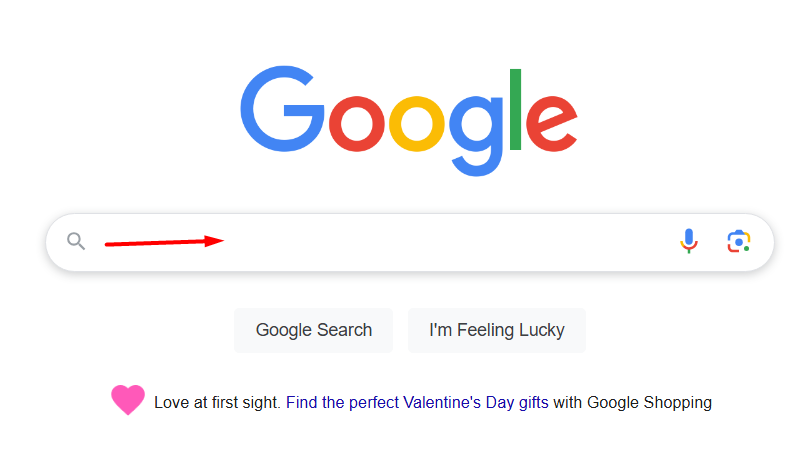
The Google search homepage screenshot above illustrates preparing the search bar for advanced indexing operators.
Ensure you perform indexation checks in incognito or private browsing windows to avoid personalized search filter distortions. Disabling browser extensions prevents cached query overrides during manual checks.
Step 2: Use the “site:” Search Operator
Executing the site: search operator returns all URLs under your domain currently indexed inside Google’s database. Type site:yourdomain.com into the search box without spaces after the colon.
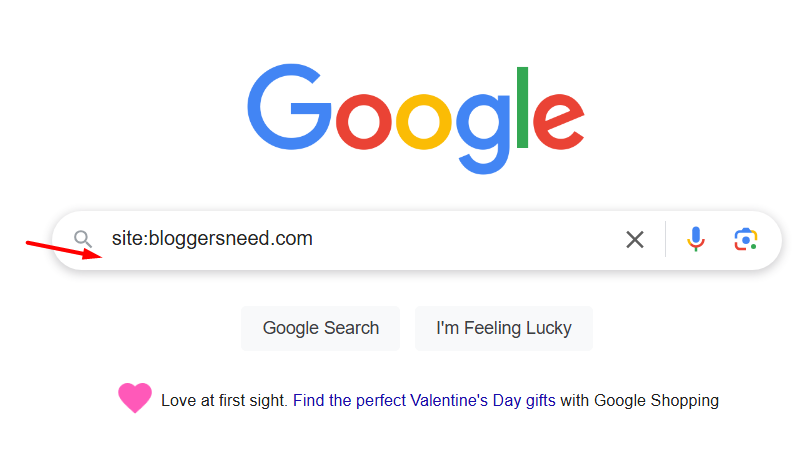
The site search operator example graphic above demonstrates querying specific domain indexation results.
To check a single specific article URL, enter site:https://yourdomain.com/sample-post/ directly into Google search. If Google displays your page listing, the URL is officially indexed.
Combining search operators, such as site:yourdomain.com inurl:category, allows segmenting indexing audits across specific directory paths or subdomains.
Step 3: Analyze Total Indexed Pages Count
The following section details step 3: analyze total indexed pages count with direct actionable steps.
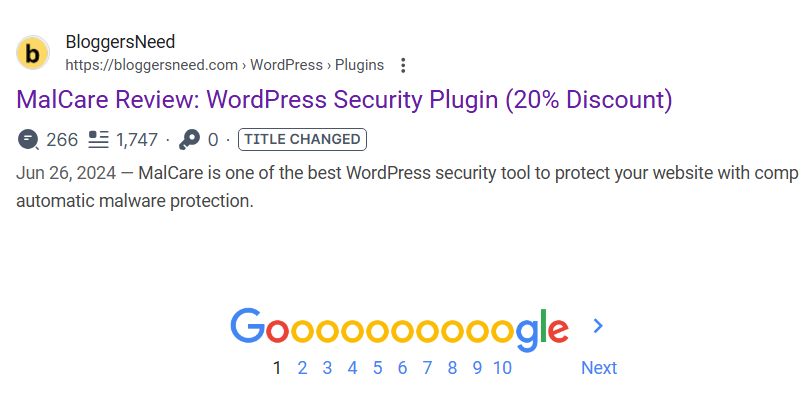
The indexed page count visual above shows reviewing total indexed URLs returned by Google’s search operator.
If the site: operator yields zero search results, your entire website suffers from indexing blocks caused by noindex meta tags, robots.txt disallow rules, or domain-level penalties.
Discrepancies where site: queries return more pages than your sitemap contains indicate indexed thin pages, tag archives, or parameter URL bloat requiring canonical cleanups.
Step 4: Inspect URLs in Google Search Console
Google Search Console provides definitive real-time server diagnostic data regarding your website’s exact indexing status. Log into GSC and enter your URL directly into the top URL Inspection tool bar.
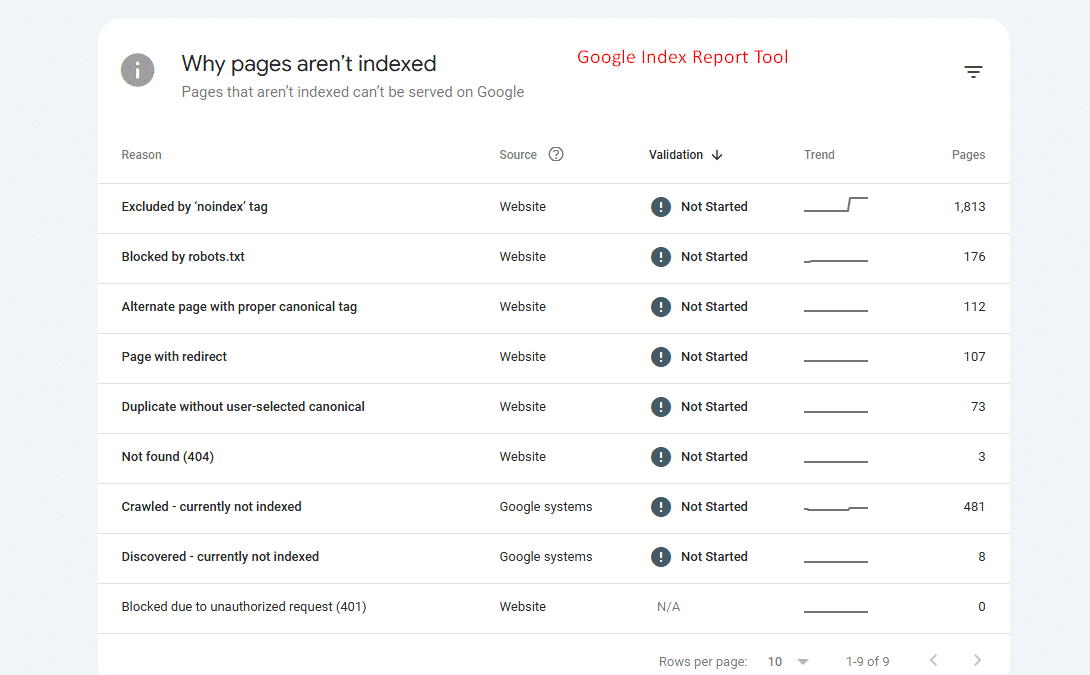
The Google Search Console URL inspection report graphic above demonstrates analyzing page crawl and indexing data.
GSC displays green checkmarks indicating “URL is on Google” or flags indexing statuses such as “Crawled – currently not indexed” or “Discovered – currently not indexed”.
Step 5: Submit URL for Immediate Re-Indexing
Clicking the Request Indexing button inside Search Console forces Googlebot to queue your URL for fresh crawling. This accelerates indexing for newly updated content or newly created blog posts.
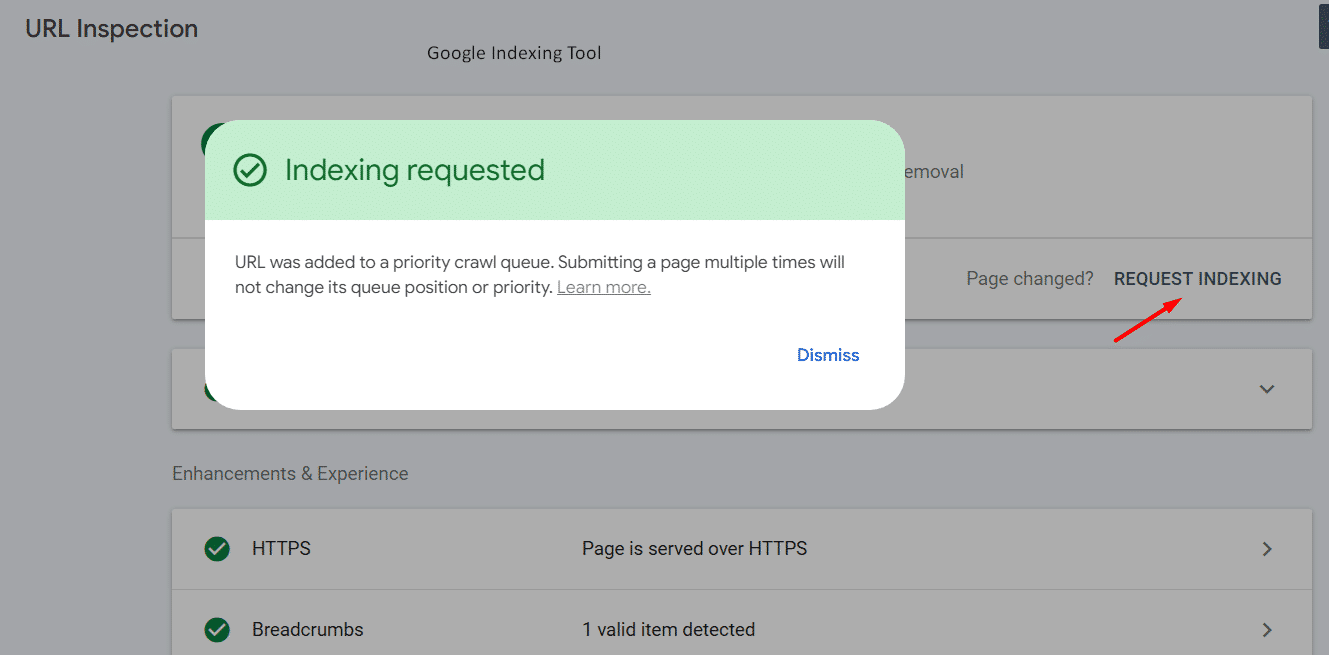
The Request Indexing interface visual above shows triggering Googlebot priority re-crawling for updated web pages.
Requesting indexation notifies Google’s indexing pipeline to prioritize your page within minutes. It is best practice to request indexing immediately following significant content updates or site restructures.
To speed up indexation across multi-page sites, utilize dedicated rapid indexing solutions reviewed in our roundup of best website indexing services.
Why Is Your Website Not Getting Indexed in Google?
Unindexed web pages stem from technical configuration errors, low-quality thin content, or server response failures. Identifying the root cause allows site owners to resolve indexing blockers rapidly.
- Accidental noindex Meta Tags: Adding a noindex tag in page header HTML explicitly instructs Googlebot to skip indexing.
- Robots.txt Disallow Directives: Blocking Googlebot user-agents in your robots.txt file prevents search crawlers from rendering page code.
- Canonical Tag Mismatches: Setting canonical URL tags pointing to alternative domain pages causes Google to index target canonicals instead.
- Thin or Duplicate Content: Google algorithms deprioritize thin articles lacking original research, ranking value, or humanized depth.
- Unfixed Broken Links & 404 Errors: Excessive broken links drain your crawl budget; learn how to fix broken links to maintain optimal crawler navigation.
- Slow Server Response Times (High TTFB): Servers taking over 2 seconds to respond trigger Googlebot crawl timeouts and indexing delays.
How Can You Monitor Your Website’s Indexing Status Regularly?
Monitoring indexing status requires reviewing the Google Search Console Page Indexing report weekly to spot crawl errors. GSC groups unindexed URLs by specific error categories, such as redirect errors, 404 missing pages, or server 5xx outages.
Automated SEO auditing tools can crawl your sitemap periodically, sending alert notifications if key landing pages drop out of Google’s index. Regular monitoring prevents accidental code updates from tanking organic search traffic.
Tracking historical indexing trends helps identify whether algorithm updates affected your site’s crawl frequency. Sudden drops in indexed URL counts signal potential penalty actions or server misconfigurations.
Why Should You Submit an XML Sitemap to Google Search Console?
Submitting an XML sitemap provides Googlebot with a clear structural roadmap of all primary canonical URLs across your site. Sitemaps ensure search crawlers discover newly published content instantly.
XML sitemaps include metadata tags such as last modification dates, helping Googlebot prioritize recently updated pages for re-crawling. Keeping sitemaps clean of 404 pages and redirect chains improves crawl efficiency.
How Do Duplicate Content and Crawl Errors Impact Indexing?
Duplicate content and crawl errors waste search engine crawl budget, causing Googlebot to delay indexing critical money pages. When Googlebot encounters identical text across multiple URLs, it selects one canonical version and ignores duplicate variants.
Eliminating soft 404 errors, fixing server timeout errors, and implementing 301 redirects for deleted URLs preserves crawl efficiency. Maintaining a clean technical infrastructure ensures Google indexes new posts within hours of publication.
Utilizing internal links effectively distributes link equity (PageRank) from high-authority landing pages to newly published articles. Strong internal linking signals content importance to Google’s salience retrieval algorithms.
Frequently Asked Questions About Google Indexing
Frequently asked questions regarding Google search indexing address site search operator diagnostics, crawl-to-index timelines, Search Console coverage errors, sitemap optimization, and de-indexing requests. Review direct practitioner answers below.
How do I use the site: operator to verify Google index status?
Enter site:yourdomain.com directly into the Google search bar to view all pages currently indexed under your root domain. To verify a specific single URL, type site:yourdomain.com/specific-page/ to confirm whether that precise page is indexed.
If the search returns zero results, Googlebot has not yet added that destination to the global search index.
How long does it take Google to index a newly published website?
Google typically indexes new websites within four days to four weeks depending on crawl demand, domain authority, and external backlink volume. Submitting an XML sitemap directly through Google Search Console significantly accelerates initial crawling schedules.
Publishers can expedite discovery by using verified website indexing services or Google Instant Indexing APIs.
Why is my website not showing up in Google search results?
A website may fail to display in search results due to accidental noindex meta tags, robots.txt blocking directives, severe manual actions, or insufficient domain authority. Check Google Search Console Page Indexing reports to diagnose specific exclusions.
Resolving crawl errors and submitting clean canonical tags allows Googlebot to resume standard indexation schedules.
What is the difference between crawled – currently not indexed and discovered – currently not indexed?
Discovered – currently not indexed means Google found the URL but chose not to crawl it yet to preserve server budget, whereas crawled
– currently not indexed means Google crawled the page but decided not to index it due to perceived quality or duplicate content issues.
Upgrading content depth and improving internal link equity encourages Googlebot to promote crawled pages into the main search index.
Can an XML sitemap accelerate Google search indexing?
Yes, an XML sitemap provides Google crawlers with direct canonical URLs, last-modified dates, and content update frequencies, reducing crawler reliance on external discovery links. It ensures newly published posts are discovered promptly.
Keep your sitemap clean by excluding 404 error URLs, password-protected admin pages, and noindex staging resources.

I’m Abdullah Prem, a passionate blogger with over 10 years of experience. I created BloggersNeed to produce high-quality, easy-to-understand articles, guides, and tutorials that help people start their blogging journey. Specializing in WordPress, Hosting, Themes, and online money-making strategies, I’ve been featured on leading tech platforms such as Tech.co, Cloudways, Business2Community, Leadpages, GoodFirms, and ShareThis. BloggersNeed.com
Comments are closed.