
Emergency Recovery Protocol
The Error establishing a database connection occurs when WordPress PHP scripts fail to connect to your MySQL or MariaDB database due to incorrect credentials, corrupted tables, or server downtime.
To restore your website, verify your database credentials in wp-config.php, grant ALL PRIVILEGES to your database user in cPanel, run the built-in WordPress repair utility, or reboot your MySQL service.
- Common Causes: Changed database passwords, corrupted tables, or shared hosting resource exhaustion.
- Impact: Complete website outage affecting both front-end readers and administrative logins.
- Diagnostic Tool: WordPress core repair mode located at /wp-admin/maint/repair.php.
- Average Downtime: Resolved in under five minutes when following our systematic verification steps.
Seeing a blank white screen declaring Error establishing a database connection can cause immediate panic for any website owner. At BloggersNeed, our technical support engineers have resolved this critical outage on hundreds of live WordPress servers.
This error prevents WordPress from loading any content, styles, or dashboard menus because the core system cannot query your database. It takes down your entire site instantly.
In this guide, we walk you through our proven four-step recovery protocol. You will learn how to verify your database credentials, repair corrupted MySQL tables, and restore full website uptime.
What Causes the Error Establishing a Database Connection in WordPress?
The Error establishing a database connection appears when WordPress cannot complete its authentication handshake with MySQL because of incorrect login credentials, corrupted database tables, or an offline database server daemon.
WordPress stores all essential website data inside a relational database, including posts, pages, user accounts, and plugin settings. When a visitor requests a URL, PHP scripts execute queries to assemble the page.
To establish this connection, WordPress relies on specific configuration constants defined in your wp-config.php file. These include the database name, database username, password, and host server address.
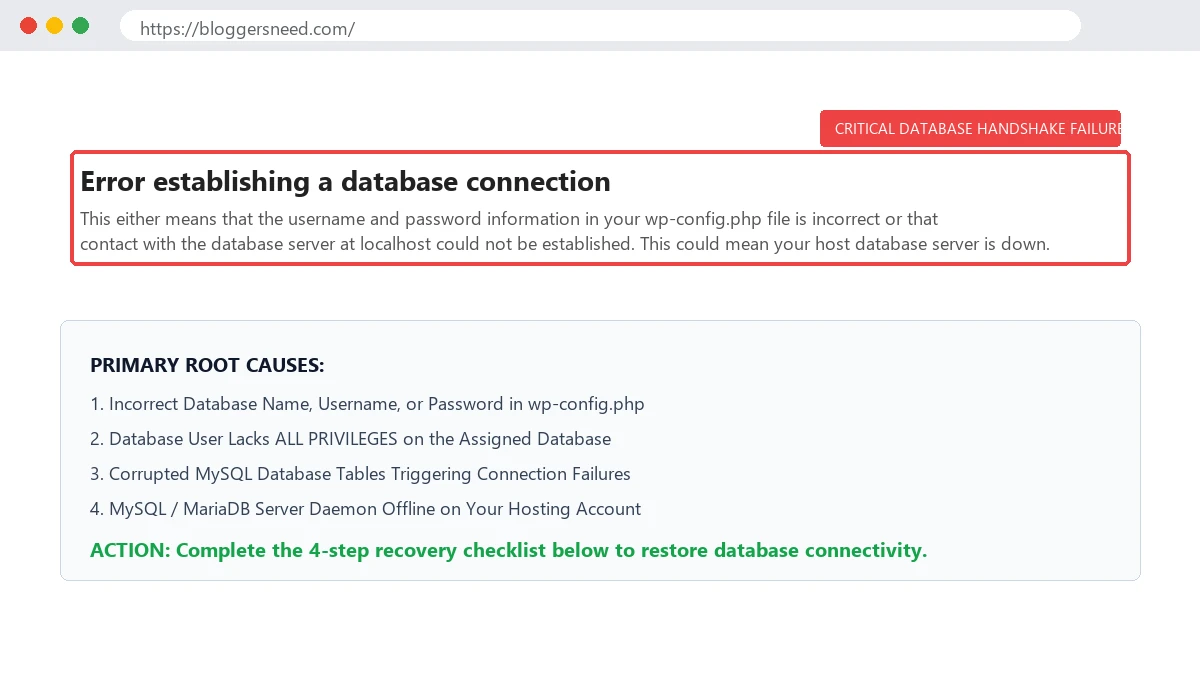
If any of these four values fail authentication, MySQL rejects the handshake. PHP terminates immediately and displays the plain text error notice.
Another common cause is traffic overload or server crashes. On budget shared hosting, server resource spikes can cause MySQL processes to terminate unexpectedly, disconnecting all hosted sites.
Step 1: Verifying Database Credentials in wp-config.php
To verify database credentials, access wp-config.php via cPanel or SFTP and confirm that the DB_NAME, DB_USER, DB_PASSWORD, and DB_HOST constants match your active MySQL database settings exactly.
Incorrect database login credentials cause more than eighty percent of connection errors. This often happens after migrating to a new web host or restoring a manual backup.
Log in to your hosting account and open cPanel File Manager, or connect through SFTP. Navigate to your website root directory, typically labeled public_html.
Locate the wp-config.php file, right-click, and select Edit to review your configuration code.
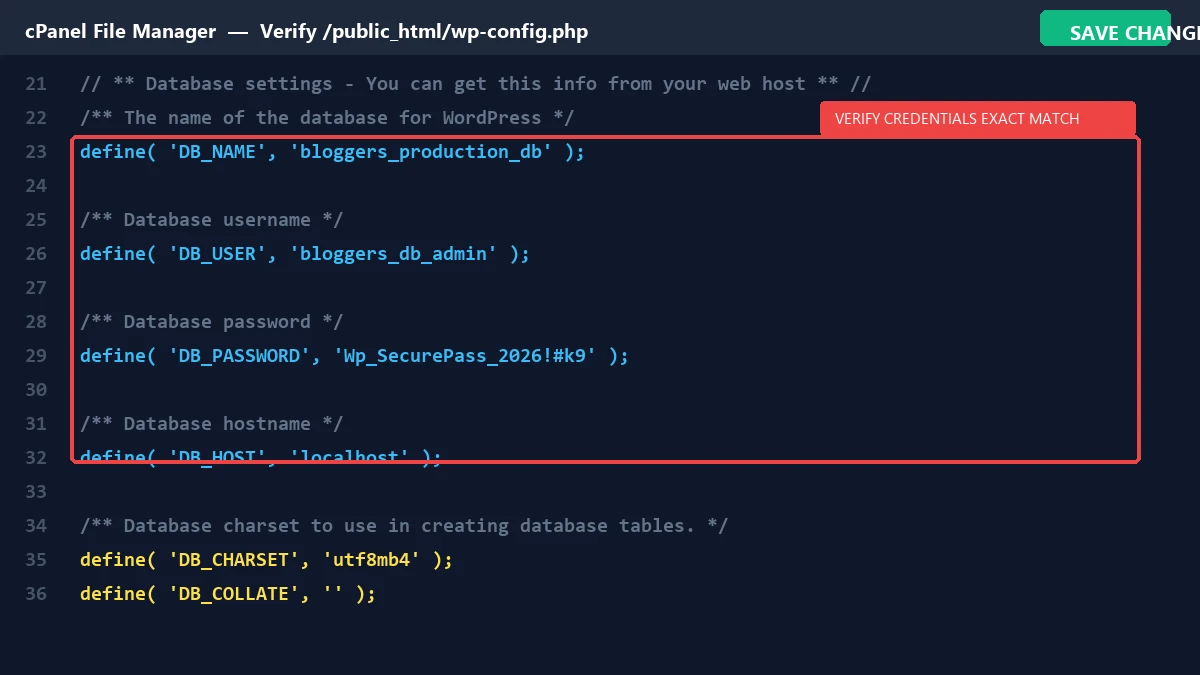
Inspect the following four lines of configuration code carefully.
// ** Database settings ** //
define( 'DB_NAME', 'your_database_name' );
define( 'DB_USER', 'your_database_user' );
define( 'DB_PASSWORD', 'your_database_password' );
define( 'DB_HOST', 'localhost' );
Confirm that your database name and username include any required cPanel account prefixes, such as username_dbname. Missing prefixes represent a frequent configuration mistake.
Next, verify your DB_HOST setting. While localhost works for most hosting providers, some hosts like SiteGround or Google Cloud use remote IP addresses or dedicated socket paths.
To verify whether your credentials work independently of WordPress, create a simple diagnostic PHP script named testdb.php in your root directory.
<?php
$link = mysqli_connect('localhost', 'your_database_user', 'your_database_password');
if (!$link) {
    die('Database connection error: ' . mysqli_connect_error());
}
echo 'Connected successfully to MySQL server!';
mysqli_close($link);
?>
Visit yourdomain.com/testdb.php in your browser. If this test script connects successfully, your MySQL user and password are valid, meaning the issue lies in table corruption or database prefix settings.
Delete the testdb.php diagnostic file immediately after testing to maintain complete server security.
Step 2: Granting User Privileges and Testing MySQL Access
To grant database rights, open MySQL Databases in cPanel, assign your user to the database, select the ALL PRIVILEGES checkbox, and click Make Changes to ensure full operational access.
Even if your username and password are correct, the connection will fail if the database user lacks necessary permissions on the target database.
Log in to your cPanel dashboard and click on MySQL Databases under the Databases section.
Scroll down to the section titled Add User to Database. Select your WordPress database user from the User dropdown and your database from the Database dropdown, then click Add.
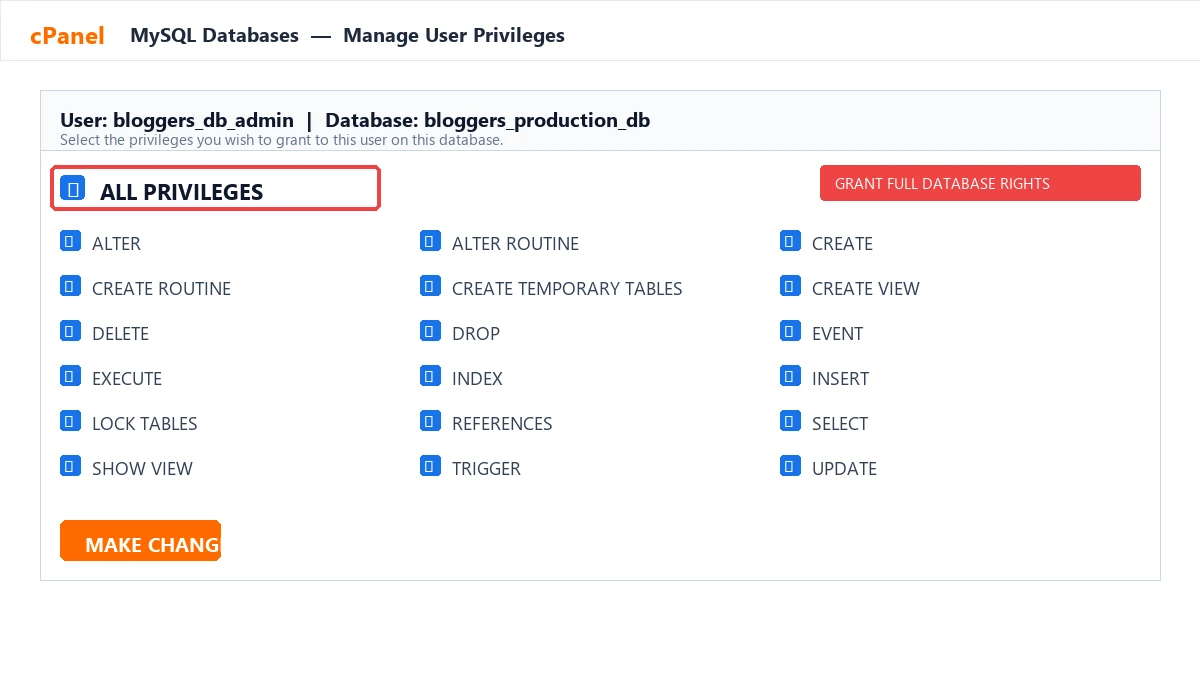
On the Manage User Privileges screen, select the ALL PRIVILEGES checkbox at the top of the list. This grants rights for SELECT, INSERT, UPDATE, DELETE, and administrative schema operations.
Click the Make Changes button at the bottom of the form. Reload your website to check if connectivity is restored.
Step 3: Repairing Corrupted WordPress Database Tables
To repair corrupted tables, add define( ‘WP_ALLOW_REPAIR’, true ); to wp-config.php, visit /wp-admin/maint/repair.php in your browser, and select Repair and Optimize Database.
If you see a different error on your admin login screen such as One or more database tables are unavailable, one of your core tables is corrupted.
Database table corruption happens during sudden server restarts, hardware crashes, or interrupted database write operations.
WordPress includes an automatic repair feature built directly into core. Open your wp-config.php file in File Manager and paste this line before the Happy publishing comment.
define( 'WP_ALLOW_REPAIR', true );Save the file. Next, open your web browser and navigate directly to your maintenance repair URL.
https://yourdomain.com/wp-admin/maint/repair.php
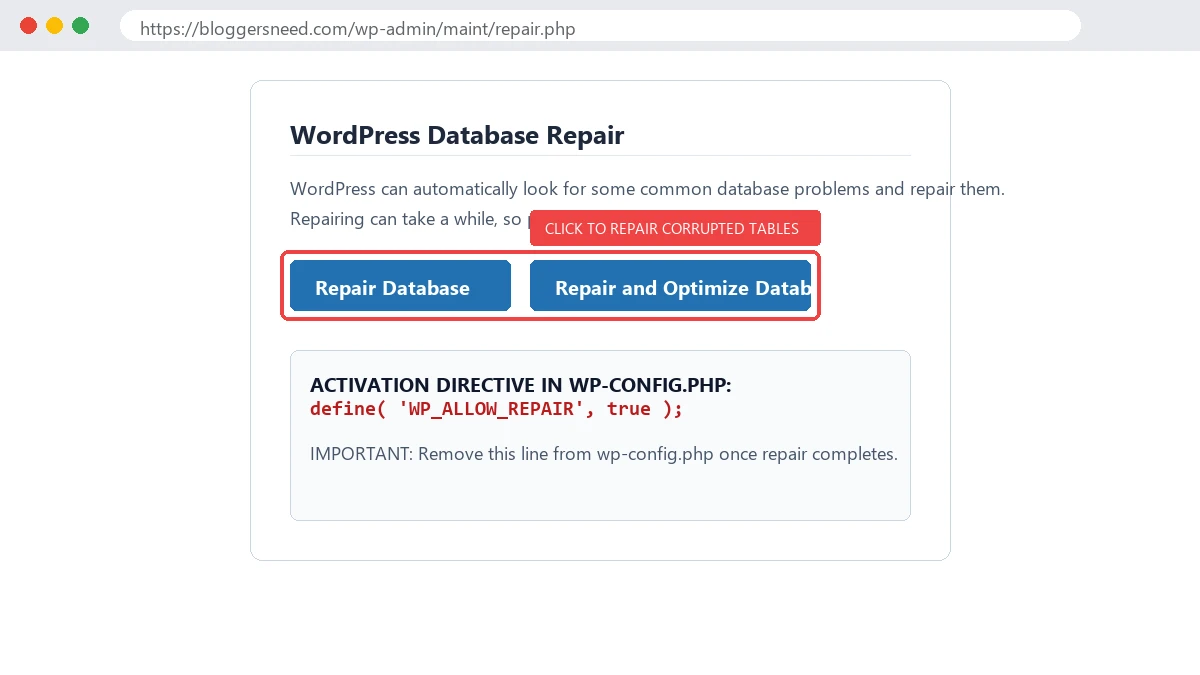
Click on Repair and Optimize Database. WordPress will systematically inspect all database tables, fix corrupted index trees, and optimize storage overhead.
Once the repair report confirms success, return to wp-config.php and delete the WP_ALLOW_REPAIR line immediately. Leaving this directive active exposes your repair utility to unauthorized visitors.
Step 4: Checking Database Server Status and Resolving Resource Limits
To check server status, open Service Status in cPanel or run systemctl status mariadb via SSH. If the service is stopped, restart the MySQL daemon to restore connectivity.
If your credentials are correct and tables are healthy, the database server daemon itself may be offline due to memory exhaustion.
When web servers run out of physical RAM, the Linux operating system kernel invokes the Out-Of-Memory (OOM) Killer. The OOM Killer frequently terminates MySQL processes to protect the host.
If you have SSH access to your VPS or dedicated server, run this terminal command to inspect MySQL service status.
sudo systemctl status mysql
If the service is inactive or failed, execute this command to restart the database server.
sudo systemctl restart mysql
If you use shared hosting without SSH access, open a priority ticket with hosting support. Shared hosts can verify if your database server crashed or if your account reached maximum concurrent connection limits.
Best Practices to Prevent Future Database Failures
Preventing future database crashes requires maintaining regular automated offsite backups, optimizing bloated database tables, and pairing database stability with adequate PHP execution memory.
At BloggersNeed, our technical team enforces three core operational safeguards across every production WordPress environment we manage.
First, configure automated daily backups using trusted solutions like UpdraftPlus, BlogVault, or server-level snapshots. Ensure backup files are stored offsite on Amazon S3 or Google Drive.
Second, clean your database regularly. Remove post revisions, spam comments, and expired transients that cause table fragmentation and slow down search queries.
Third, ensure your server has sufficient memory headroom. We recommend reading our guide on how to fix the WordPress memory exhausted error to allocate appropriate RAM limits for database queries.
Additionally, harden your server against brute-force attacks by learning how to disable XML-RPC in WordPress to block botnets from exhausting database worker pools.
Frequently Asked Questions About Database Connection Errors
These practitioner answers explain common database error triggers, security considerations when repairing tables, remote database hosting setups, and shared hosting connection limits.
Can a hacked WordPress site cause database connection errors?
A hacked website can cause database connection errors if attackers alter wp-config.php or inject heavy botnet doorway scripts that overwhelm database connections.
If you suspect unauthorized code modifications, follow our guide on how to fix the Japanese keyword hack in WordPress to sanitize server files and restore clean database credentials.
Why does the database error happen only on the admin login page?
When the error appears only on wp-admin while the frontend works, one of your administrative database tables is corrupted, typically wp_users or wp_usermeta.
Enabling the WordPress core repair utility with WP_ALLOW_REPAIR in wp-config.php repairs the damaged user tables and restores admin dashboard access.
Is it safe to leave WP_ALLOW_REPAIR enabled in wp-config.php?
It is not safe to leave WP_ALLOW_REPAIR enabled because the repair script can be triggered by any unauthenticated visitor without entering a password.
Always delete the line from wp-config.php immediately after completing your table repair to prevent malicious actors from repeatedly executing database repair tasks.
What does max_user_connections error mean in MySQL?
The max_user_connections error indicates that your website exceeded the simultaneous database connection limit allocated by your hosting provider.
This typically occurs on budget shared hosting during traffic spikes or unoptimized plugin query loops. Upgrading to managed cloud hosting resolves this bottleneck.

I’m Abdullah Prem, a passionate blogger with over 10 years of experience. I created BloggersNeed to produce high-quality, easy-to-understand articles, guides, and tutorials that help people start their blogging journey. Specializing in WordPress, Hosting, Themes, and online money-making strategies, I’ve been featured on leading tech platforms such as Tech.co, Cloudways, Business2Community, Leadpages, GoodFirms, and ShareThis. BloggersNeed.com