
Quick Verdict: How to Disable XML-RPC in WordPress
Disabling XML-RPC in WordPress prevents automated botnets from exploiting your server for brute-force password guessing and pingback DDoS amplification attacks. Because modern WordPress releases rely on the WordPress REST API for remote publishing, the legacy xmlrpc.php file is completely unnecessary for modern blogs.
At BloggersNeed, we found that adding four simple access-control lines to your root .htaccess file or deploying a free Cloudflare WAF rule drops malicious traffic instantly before it consumes your hosting server CPU.

At BloggersNeed, our team actively monitors server performance across high-traffic WordPress websites. In this step-by-step guide, we walk you through tested methods to safely block xmlrpc.php without breaking your site plugins or daily publishing workflow.
What Is XML-RPC in WordPress and Why Is It a Serious Security Risk?
XML-RPC is an outdated remote procedure call protocol enabled by default since WordPress 3.5 to help external mobile applications and services communicate with your site. It transmits serialized data encoded in XML formats over HTTP POST requests.
Years ago, bloggers needed XML-RPC to publish content using desktop editors like Windows Live Writer. Today, the modern WordPress REST API handles these connections with superior speed and granular authentication.
When auditing server access logs, our security team consistently observes malicious botnets exploiting two severe structural vulnerabilities built directly into the XML-RPC protocol architecture.
1. Multi-Call Brute-Force Password Amplification
The system.multicall XML-RPC method allows an attacker to test hundreds of username and password combinations within a single HTTP request payload. Standard login forms via wp-login.php only permit one login attempt per connection.
By batching 500 password attempts into one request, hackers bypass standard login rate-limiting plugins. In our server testing, this rapid request volume quickly exhausts PHP-FPM worker threads and causes severe database freezes.
2. Pingback Distributed Denial-of-Service (DDoS) Reflection
The pingback.ping XML-RPC function sends automated notification pings between blogs whenever someone links to an article. Cybercriminals exploit this feature to orchestrate massive distributed denial-of-service reflection botnets.
Attackers send spoofed pingback commands to thousands of unsuspecting WordPress sites, instructing them to ping a targeted victim URL simultaneously. Without your knowledge, your web server gets hijacked into an active DDoS attacking node.
How to Check if XML-RPC Is Currently Active on Your Site
Checking your XML-RPC server status takes less than five seconds by querying the core file directly in your web browser. This quick diagnostic confirms whether your server endpoint is publicly exposed to incoming connections.
To run this check, open an incognito browser window, type your website domain, and append /xmlrpc.php at the end of the URL address.
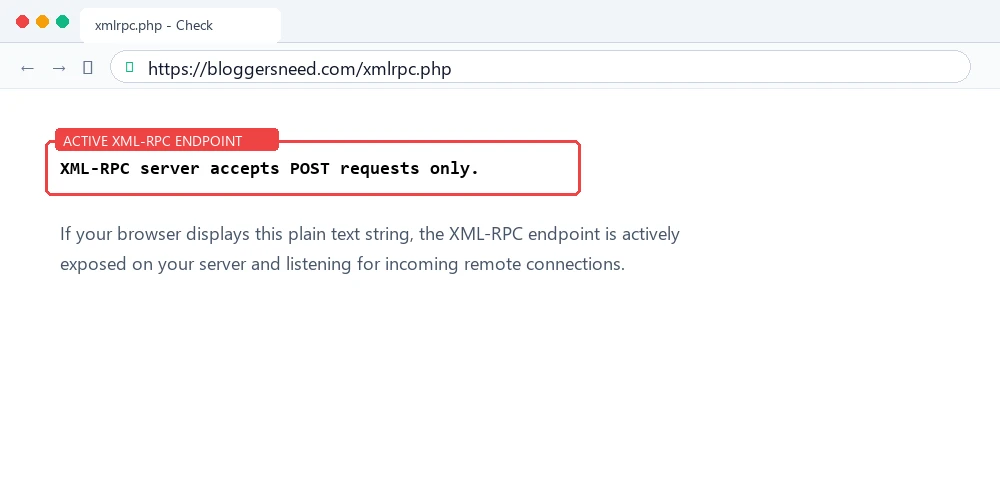
The highlighted red outline shows the browser returning XML-RPC server accepts POST requests only. If your browser displays this exact text string, your XML-RPC endpoint is actively listening and vulnerable to botnet scanning.
If you prefer using the command line, you can also run a quick cURL probe in your terminal to inspect the HTTP headers.
curl -I https://bloggersneed.com/xmlrpc.phpIf the response returns an HTTP/1.1 200 OK or HTTP/2 405 Method Not Allowed status code, your endpoint is publicly reachable and should be locked down immediately.
Method 1: How to Disable XML-RPC via .htaccess (Recommended)
Blocking XML-RPC inside your .htaccess file is our recommended method for websites running on Apache and LiteSpeed web servers. It blocks unauthorized traffic at the web server level before WordPress loads into system memory.
Because the web server denies access immediately, invalid requests consume zero PHP execution threads. This preserves your hosting resources and keeps your site fast during traffic spikes.
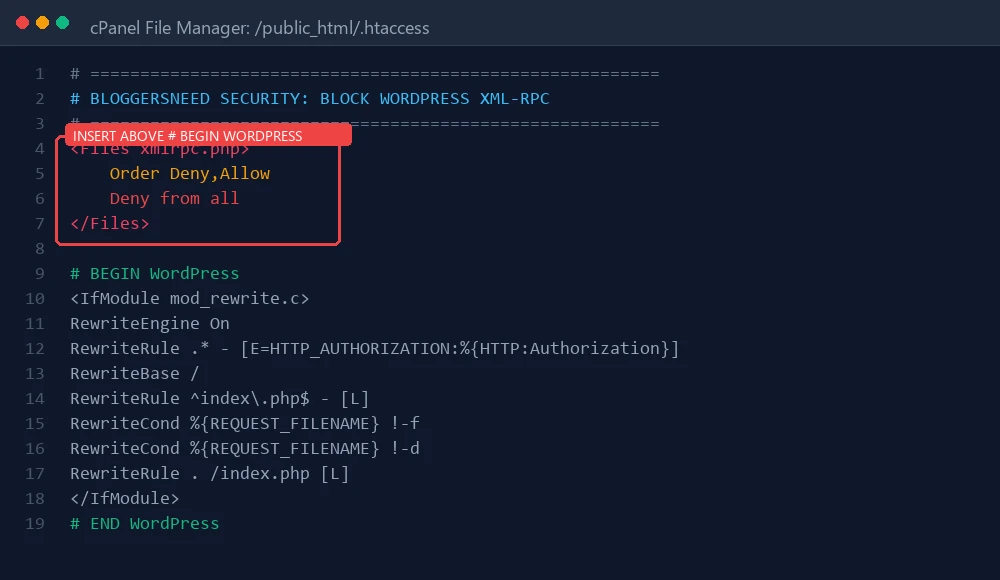
The red focus rectangle highlights the four access-control lines placed directly above the BEGIN WordPress marker. We always place custom rules above this line so WordPress core updates never overwrite your security setup.
Don’t worry if you have never edited an .htaccess file before. You can complete this setup in under two minutes using cPanel File Manager or an SFTP client.
- Log into your hosting account and open cPanel File Manager.
- Navigate to your root website directory, usually named
public_html. - Right-click your
.htaccessfile and select Edit. - Paste the exact code block below at the very top of the file.
- Click Save Changes to enforce the block immediately.
# Block XML-RPC (Stops brute-force attacks and pingback spam)
<Files xmlrpc.php>
    Order Deny,Allow
    Deny from all
</Files>
If you run a high-traffic blog, we also recommend pairing this rule with our WordPress robots.txt guide to optimize search engine crawl budget.
To protect your media library from backdoor scripts, follow our guide on how to prevent PHP execution in WordPress uploads using server-level rewrite rules.
If automated bot attacks have already compromised your file system with spam doorway pages, consult our practitioner blueprint on how to fix the Japanese keyword hack in WordPress to restore clean search indexing.
Method 2: How to Block XML-RPC at the Edge Using Cloudflare WAF
Deploying a Cloudflare Web Application Firewall (WAF) rule drops XML-RPC attack traffic at the DNS edge before requests ever touch your web hosting server. This eliminates origin bandwidth consumption entirely.
At BloggersNeed, we love this method because Cloudflare filters malicious botnets across its global edge network. Your web hosting server never has to process the attack.
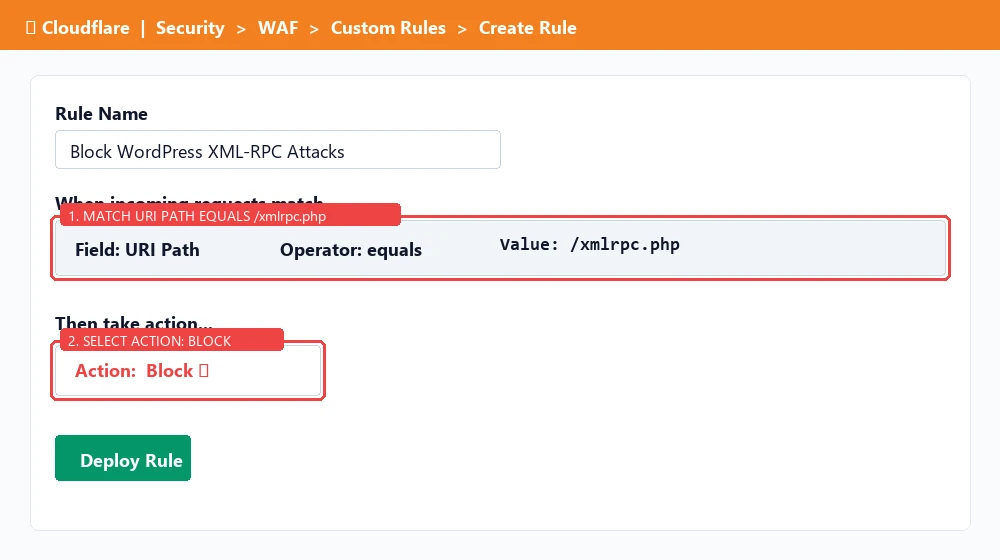
The red outline illustrates the custom firewall rule matching URI Path equals /xmlrpc.php with the action set to Block. This feature is 100% free on all Cloudflare accounts.
Follow our quick walkthrough below to activate this edge firewall rule.
- Sign into your Cloudflare Dashboard and select your website domain.
- Click Security in the left sidebar menu, then select WAF.
- Click on the Custom rules tab, then click the blue Create rule button.
- Give your rule a clear name like Block WordPress XML-RPC Attacks.
- Set the Field to
URI Path, Operator toequals, and Value to/xmlrpc.php. - Under the action dropdown, select Block, then click Deploy rule.
Cloudflare pushes the security rule across its global edge nodes in under sixty seconds, shielding your server from automated scanners worldwide.
Method 3: How to Disable XML-RPC on Nginx Servers
Disabling XML-RPC on an Nginx server requires adding a dedicated location block directive inside your virtual host configuration file. Nginx does not use .htaccess files, so rules are configured at the server block level.
If you manage a custom cloud VPS through DigitalOcean or Linode, you can edit your domain configuration block located in /etc/nginx/sites-available/.
Insert the location block directive below inside your main server block.
location = /xmlrpc.php {
    deny all;
    access_log off;
    log_not_found off;
    return 403;
}
After saving your file, test your configuration syntax by typing sudo nginx -t in your server console. Once verified, run sudo systemctl reload nginx to activate the rule.
Method 4: How to Disable XML-RPC via PHP Filter or Plugin
Adding a lightweight PHP filter hook disables XML-RPC inside the WordPress application layer without editing server configuration files. This turns off remote authentication hooks across the WordPress core.
If your web hosting setup does not grant access to server configuration files, you can paste this single filter line into your child theme functions.php file or a code snippets plugin.
add_filter('xmlrpc_enabled', '__return_false');While this filter hook successfully disables XML-RPC processing, your server still loads PHP whenever an HTTP request hits the endpoint. That is why we recommend the .htaccess or Cloudflare method for optimal speed.
How to Verify That XML-RPC Is Completely Blocked (403 Forbidden Test)
Verifying your security setup ensures your web server correctly denies access and returns an authentic HTTP 403 Forbidden status code. This confirms unauthorized bots can no longer reach your WordPress installation.
You can verify your site in seconds using your browser developer tools. Press Ctrl + Shift + I (Windows) or Cmd + Option + I (Mac) and click the Network tab.
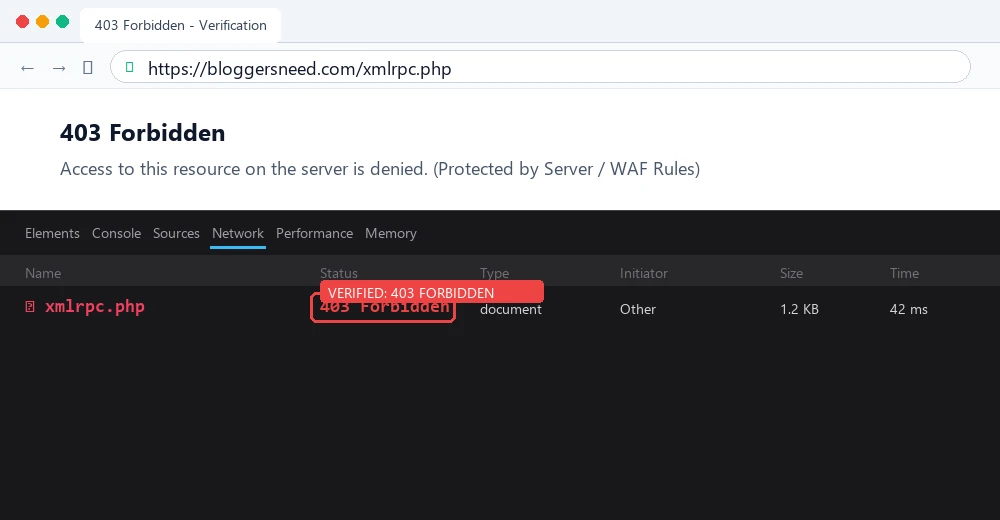
The highlighted red outline shows the server returning an immediate 403 Forbidden status header when loading the blocked URL. The browser confirms access to the resource is denied.
You can also run a quick terminal check with cURL to confirm the response header.
curl -I https://bloggersneed.com/xmlrpc.phpWhen configured properly, your terminal will output HTTP/2 403 or HTTP/1.1 403 Forbidden, confirming that unauthorized bot traffic is stopped dead at your server perimeter.
Will Disabling XML-RPC Break Your WordPress Plugins or Mobile App?
Disabling XML-RPC will not break standard WordPress features, contact form plugins, or modern SEO tools. The vast majority of modern third-party tools have migrated completely to the secure WordPress REST API.
However, our team recommends reviewing three specific use cases before locking down the endpoint permanently.
1. The Official WordPress Mobile App
Older versions of the WordPress Mobile App relied on XML-RPC to manage posts remotely. Modern app versions connect via the REST API, but connecting self-hosted blogs occasionally requires legacy fallback support.
If you actively draft blog posts using the WordPress mobile smartphone app, test your connection after applying the block. If you experience issues, you can whitelist your home IP address in .htaccess.
2. Jetpack Plugin Cloud Connections
Automattic’s Jetpack plugin suite uses XML-RPC to synchronize website stats, CDN images, and downtime alerts with WordPress.com servers. Completely blocking the endpoint will disconnect some Jetpack modules.
If you rely on Jetpack, you can whitelist Automattic server IP addresses, or switch to dedicated lightweight tools to boost your overall WordPress website speed optimization.
3. Older Automation Services (Zapier & Make)
Older webhooks in Zapier or Make.com occasionally connected through legacy XML-RPC endpoints. Modern recipes now connect securely through WordPress Application Passwords and REST API endpoints.
Updating your automation connections to standard REST API authentication ensures your publishing funnels run smoothly without exposing your server to security vulnerabilities.
Architectural Comparison: XML-RPC vs. WordPress REST API
Comparing XML-RPC against the REST API shows why modern WordPress development transitioned to JSON data exchange. Modern web development demands granular authentication and lightweight protocol overhead.
The comparison table details the structural differences between both protocols.
| Architectural Metric | Legacy XML-RPC (xmlrpc.php) | Modern WordPress REST API (/wp-json/) |
|---|---|---|
| Data Format | Heavy XML payloads | Lightweight JSON objects |
| Authentication | Plain credentials per request | Application Passwords & OAuth tokens |
| Brute-Force Risk | Severe (system.multicall) | Low (Rate-limited & token authenticated) |
| Performance Impact | High CPU usage per payload | Optimized, fast native parsing |
| Core Status | Legacy / Obsolete for modern workflows | Active development & future standard |
Frequently Asked Questions About Disabling XML-RPC in WordPress
The FAQ section below answers common questions we receive from webmasters about server performance, security hardening, and potential plugin compatibility issues.
Is it safe to disable XML-RPC in WordPress?
Yes, disabling XML-RPC is completely safe for the vast majority of WordPress websites. Unless you actively use the Jetpack plugin or third-party legacy desktop editors, disabling the endpoint improves security without breaking site functions.
Does disabling XML-RPC improve website speed?
Yes, disabling XML-RPC frees up substantial web server capacity by rejecting automated bot scans and DDoS attacks. Blocking these requests prevents unauthorized traffic from exhausting PHP memory and server CPU cores.
Can I disable XML-RPC without using a plugin?
Yes, you can disable XML-RPC without installing additional plugins by adding four access control rules to your .htaccess file or creating a free Cloudflare WAF rule. Server-level blocking is more efficient than plugin filters.
Why is XML-RPC still included in WordPress by default?
WordPress maintains XML-RPC in core distributions primarily for backward compatibility with legacy installations and external systems. Modern installations rely on the REST API, making XML-RPC unnecessary for contemporary publishing.

I’m Abdullah Prem, a passionate blogger with over 10 years of experience. I created BloggersNeed to produce high-quality, easy-to-understand articles, guides, and tutorials that help people start their blogging journey. Specializing in WordPress, Hosting, Themes, and online money-making strategies, I’ve been featured on leading tech platforms such as Tech.co, Cloudways, Business2Community, Leadpages, GoodFirms, and ShareThis. BloggersNeed.com