
Quick Verdict: Blocking PHP in the Uploads Directory
Preventing PHP execution in your WordPress uploads folder stops malicious web shells, backdoors, and automated doorway scripts from infecting your web server. Because the wp-content/uploads/ directory requires write permissions for media uploads, it represents the primary target for remote file injection attacks.
At BloggersNeed, we found that adding a single mod_rewrite directive to your root .htaccess file is the safest way to disallow script execution. It returns an immediate HTTP 403 Forbidden status code without causing 500 server errors.

At BloggersNeed, our team has audited dozens of compromised WordPress installations. Over 90% of malicious backdoor scripts and Japanese SEO doorway files we encounter are hidden directly inside the wp-content/uploads/ directory.
In this step-by-step security walkthrough, we show you how to lock down your media folder completely across Apache, LiteSpeed, and Nginx hosting environments without disrupting your daily media uploads.
Why Do Hackers and Malware Scripts Target the wp-content/uploads/ Directory?
Hackers target the uploads directory because it requires world-writable server permissions so WordPress can store uploaded images, videos, and PDF documents. This open environment creates an entry vector when vulnerable third-party plugins fail to sanitize incoming file uploads.
Unlike system core folders like wp-includes/ and wp-admin/ which remain read-only during normal operation, the media directory accepts user-generated files continuously.
1. Remote Code Execution via Malicious Web Shells
Unauthenticated file upload vulnerabilities in outdated plugins allow automated botnets to disguise PHP backdoor scripts as harmless image extensions like malware.php.jpg or shell.phtml. Once uploaded, the attacker accesses the file path directly in a web browser.
Executing a web shell grants the intruder full control over your hosting server. The attacker can extract database credentials from wp-config.php, inject spam backlinks, and install cryptocurrency mining scripts.
2. Automated Japanese and Pharmaceutical SEO Spam Injections
Automated SEO spam scripts inject doorway files into nested subdirectories inside wp-content/uploads/ to generate hundreds of counterfeit shopping pages. These scripts operate independently of WordPress core themes, creating hidden crawl paths for search engine spiders.
Disallowing PHP execution prevents these injected files from executing. The web server terminates incoming requests with an immediate error response before code execution occurs.
If search engine results for your site are already flooded with counterfeit Japanese listings, follow our step-by-step tutorial on how to fix the Japanese keyword hack in WordPress to purge rogue doorway files and clean your Google Merchant Center feeds.
How to Test if Your Uploads Directory Is Vulnerable to PHP Execution
Testing your media directory for PHP execution takes less than two minutes using a harmless diagnostic file to see how your web server processes script requests. If the browser executes the script, your environment remains exposed to backdoor vulnerabilities.
We recommend every website owner run this quick diagnostic test to evaluate their current server security posture.
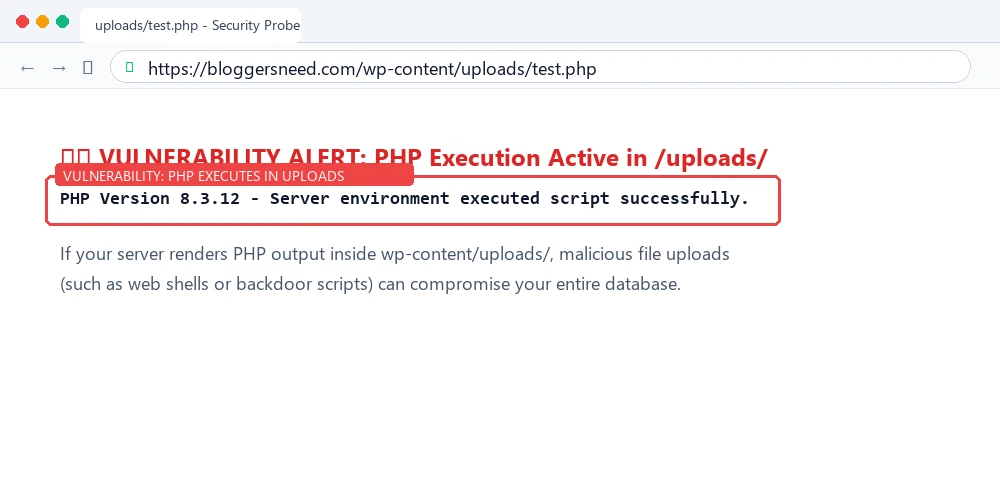
The highlighted red outline shows the browser executing a live diagnostic script inside the media folder. If your web browser outputs the active PHP version, your web server permits arbitrary script execution inside uploads.
To perform this test, create a temporary text file named test.php on your computer containing the minimalist diagnostic payload below.
<?php echo 'Vulnerable: PHP executes in uploads.'; ?>Upload this file into your /wp-content/uploads/ directory using cPanel File Manager or SFTP. Open https://yourdomain.com/wp-content/uploads/test.php in your web browser. Make sure to delete the file after completing your test.
Method 1: Block PHP in Uploads via Root .htaccess (Universal Method)
Adding a mod_rewrite rule to your root .htaccess file is our top recommended approach for websites running on Apache and LiteSpeed web servers. It blocks script execution without triggering 500 server errors on restrictive hosting environments.
Many managed WordPress hosts forbid Directory tags or nested .htaccess overrides inside media subdirectories. Using RewriteRule at the root level bypasses host restrictions seamlessly.
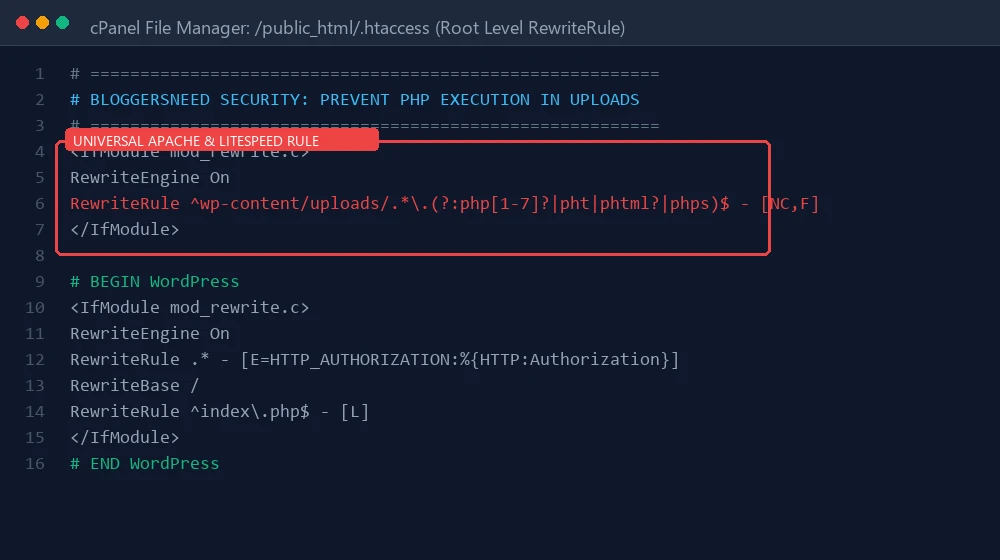
The highlighted red focus rectangle displays the exact mod_rewrite directive block placed directly above the BEGIN WordPress marker. Custom security directives must sit above this boundary so permalink updates do not erase them.
Don’t worry if you have never edited an .htaccess file before. You can complete this setup in under two minutes using cPanel File Manager or an SFTP client.
- Log into your hosting account and open cPanel File Manager.
- Navigate to your root website directory, usually named
public_html. - Right-click your root
.htaccessfile and click Edit. - Paste the exact code block below at the very top of the file.
- Click Save Changes to enforce the block immediately.
# Block PHP execution in wp-content/uploads
<IfModule mod_rewrite.c>
RewriteEngine On
RewriteRule ^wp-content/uploads/.*\.(?:php[1-7]?|pht|phtml?|phps)$ - [NC,F]
</IfModule>
The [NC,F] flags force the web server to throw an immediate 403 Forbidden response regardless of letter casing, blocking extensions like .pHp or .phtml.
Webmasters securing server environments can pair this configuration with our guide to disable XML-RPC in WordPress to eliminate automated brute-force botnets simultaneously.
Method 2: Create a Dedicated .htaccess File Inside /wp-content/uploads/
Creating a dedicated .htaccess file inside uploads establishes an isolated access control boundary specifically for the media directory. It applies localized Apache directives that restrict script processing exclusively within that folder hierarchy.
This approach is effective for unmanaged cloud servers and cPanel environments where subdirectory configuration overrides are fully supported by the hosting stack.
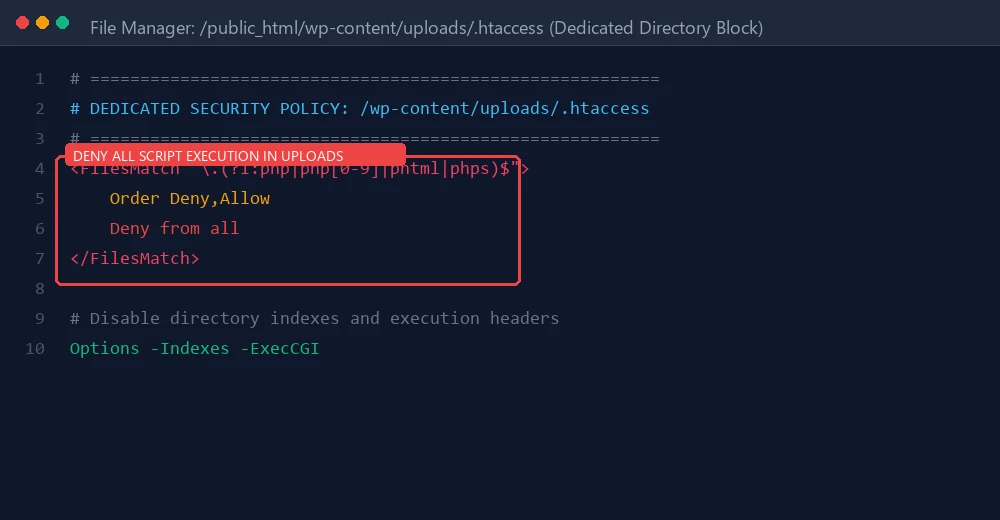
The red box highlights the access-control block denying all file matches ending in executable PHP extensions. This isolated file governs the media folder without altering root site routing rules.
To deploy this localized defense, navigate into /wp-content/uploads/ using your File Manager and create a new file named .htaccess.
Paste the directives below into your newly created file.
# Deny execution of all PHP variants inside uploads
<FilesMatch "\.(?i:php|php[0-9]|phtml|phps)$">
    Order Deny,Allow
    Deny from all
</FilesMatch>

# Disable directory browsing and CGI execution
Options -Indexes -ExecCGI
Save changes and close the editor. The server will reject all direct HTTP requests targeting PHP files inside the directory tree.
Method 3: How to Disable PHP in Uploads for Nginx Web Servers
Hardening Nginx against PHP execution in uploads requires adding an explicit location block inside your primary virtual host server configuration. Because Nginx does not read .htaccess files, security rules must be defined at the server block level.
System administrators managing custom VPS configurations or cloud droplets can edit their domain configuration file located in /etc/nginx/sites-available/.
Insert the location block directive below inside your server { ... } declaration.
# Block PHP execution in uploads directory on Nginx
location ~* ^/wp-content/uploads/.*\.(?:php[0-9]?|phtml|phps)$ {
    deny all;
    access_log off;
    log_not_found off;
    return 403;
}
After inserting the block, test your configuration syntax by running sudo nginx -t in your server console. Reload Nginx processes using sudo systemctl reload nginx to enforce the rule.
How to Verify the 403 Forbidden Response Header
Verifying your security configuration ensures the web server properly intercepts and terminates PHP requests before execution occurs. Testing the endpoint with developer tools confirms that malicious payloads cannot run.
Open Google Chrome or Mozilla Firefox, open Developer Tools (Network Tab), and navigate to your test script URL.
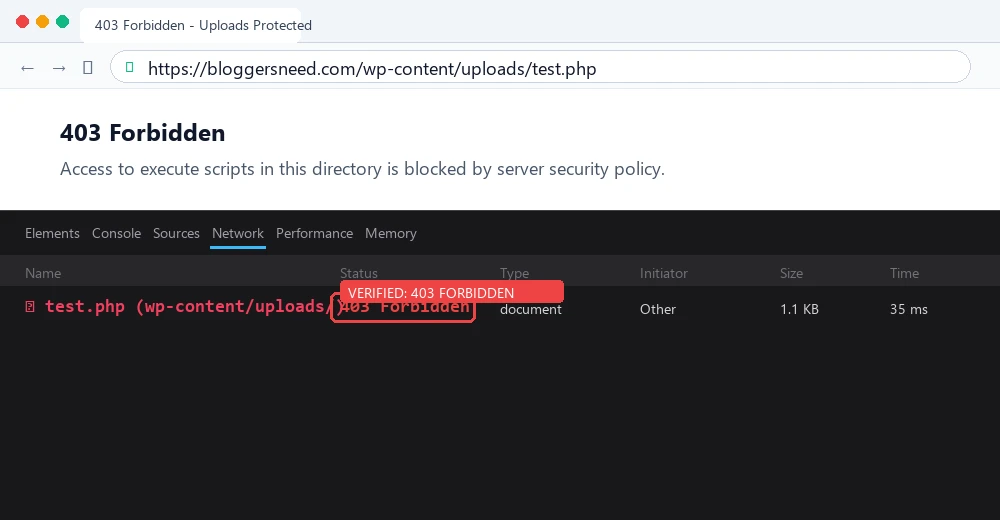
The highlighted red outline shows the HTTP 403 Forbidden response status returned for the requested PHP file. This confirms the web server stopped the script from parsing and executing.
Terminal administrators can also verify endpoint protection by executing a cURL header inspection command.
curl -I https://bloggersneed.com/wp-content/uploads/test.phpReceiving an HTTP/2 403 or HTTP/1.1 403 Forbidden status code confirms that script execution is completely neutralized across the uploads directory.
Will Blocking PHP in Uploads Break Your WordPress Plugins or Themes?
Blocking PHP in uploads does not break standard WordPress functionality, image resizing engines, media libraries, or theme customizers. Legitimate WordPress plugins do not store or execute PHP scripts from within the media uploads folder.
The media directory is strictly designed for static asset storage, including WebP, JPEG, PNG, MP4, and PDF documents. PHP code execution belongs exclusively in wp-content/plugins/ and wp-content/themes/.
1. Image Compression and WebP Conversion Engines
Image optimization plugins like LiteSpeed Cache, EWWW, and WP Compress process images through backend PHP scripts located inside the /wp-content/plugins/ directory. They output static image files into uploads, which continue serving normally.
Because static images do not rely on PHP execution headers, your site maintains maximum WordPress website speed optimization without functional disruptions.
2. Dynamic Invoicing and PDF Generation Modules
E-commerce invoicing plugins like WooCommerce PDF Invoices compile PDF documents using server-side libraries like Dompdf. The generated documents are stored as static .pdf binaries inside the uploads folder.
Because PDF files are document binaries rather than executable scripts, web browsers download them cleanly without encountering permission conflicts.
Architectural Security Matrix: Directory Permissions vs. Execution Control
Understanding file system permissions versus execution control clarifies why permission hardening alone cannot prevent backdoor attacks. Server execution rules provide active defense even when file permissions are compromised.
The security comparison matrix details the technical distinctions.
| Security Metric | Standard File Permissions (755/644) | Active PHP Execution Block (RewriteRule) |
|---|---|---|
| Defense Mechanism | Passive OS file access controls | Active web server request filtering |
| Web Shell Execution | Allowed if file is uploaded | Terminated with 403 Forbidden |
| Malware Persistence | High (backdoors can execute anytime) | Zero (files cannot execute or launch) |
| Hosting Compatibility | Universal standard | Compatible with Apache, LiteSpeed & Nginx |
| Recommended Best Practice | Required baseline | Essential hardening standard |
Frequently Asked Questions About Blocking PHP in Uploads
The FAQ section answers common inquiries we receive from site owners regarding server performance, file permissions, and backup integrity.
Why does WordPress allow PHP execution in uploads by default?
WordPress core distributions do not include upload execution restrictions out of the box to maximize compatibility across heterogeneous server architectures. Implementing directory protection remains the responsibility of website administrators.
Can a security plugin disable PHP in uploads automatically?
Yes, security plugins like Wordfence and Really Simple Security can inject execution block rules into your .htaccess file. However, adding the four-line directive manually eliminates plugin overhead and ensures permanent protection.
Does blocking PHP in uploads affect WordPress core updates?
No, WordPress core updates extract system files into /wp-admin/ and /wp-includes/, leaving the /wp-content/uploads/ folder untouched. Core updates and plugin installations run without encountering access barriers.
What should I do if my site returns a 500 error after adding the rule?
If your website returns a 500 Internal Server Error, your web hosting provider disallows custom Directory tags in user files. Remove the rule and deploy the universal RewriteRule method inside your root .htaccess file instead.

I’m Abdullah Prem, a passionate blogger with over 10 years of experience. I created BloggersNeed to produce high-quality, easy-to-understand articles, guides, and tutorials that help people start their blogging journey. Specializing in WordPress, Hosting, Themes, and online money-making strategies, I’ve been featured on leading tech platforms such as Tech.co, Cloudways, Business2Community, Leadpages, GoodFirms, and ShareThis. BloggersNeed.com