
Fatal Error Diagnostic & Recovery Protocol
The WordPress White Screen of Death (WSoD) is a critical failure state where the website displays a completely blank page or a critical error notice caused by unhandled PHP fatal errors or memory limits.
To resolve this incident, activate WordPress debug logging via wp-config.php, inspect debug.log for specific script stack traces, raise allocated memory thresholds, and deactivate malfunctioning themes or plugins.
- Root Cause: Uncaught PHP fatal exceptions, exhausted memory limits, or incompatible plugin hooks.
- Diagnostic Mode: Enable WP_DEBUG_LOG to capture errors without exposing code to public visitors.
- Primary Fix: Increase WP_MEMORY_LIMIT to 256M, isolate faulty plugins via SFTP, and activate default theme.
- Recovery Window: Administrative and front-end access restored within ten to twenty minutes.
Few WordPress failures cause more panic than opening your website and facing an empty white browser window or a generic critical error message. At BloggersNeed, our technical recovery engineers resolve White Screen of Death incidents across high-traffic production platforms weekly.
Because the White Screen of Death suppresses all HTML output, diagnosing the underlying cause can feel like troubleshooting in the dark. The WordPress admin dashboard becomes inaccessible, locking site administrators out of standard toolbars.
This technical guide provides a step-by-step diagnostic roadmap. You will learn how to bypass the blank screen, capture exact PHP error traces, and restore full website operation safely.
What Is the WordPress White Screen of Death (WSoD)?
The WordPress White Screen of Death (WSoD) is an unhandled fatal error condition where the PHP engine encounters a terminal script failure, memory allocation limit, or database communication breakdown, causing the server to halt rendering before generating HTML output.
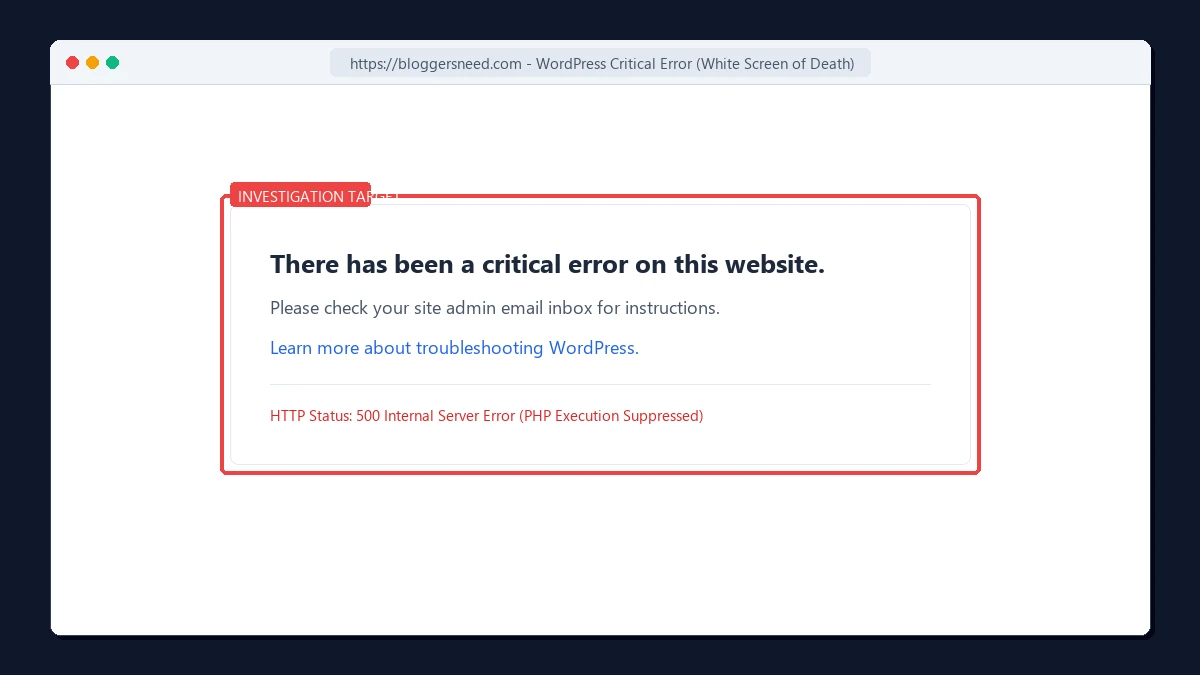
Modern WordPress releases often replace the pure blank screen with a user-facing notice stating that there has been a critical error on this website. While the wording differs, the underlying architectural breakdown remains identical.
When WordPress processes an incoming HTTP request, it loads the core files, initializes active plugins, and evaluates theme functions. If any component triggers a fatal PHP error, execution stops instantly.
Because PHP error display is disabled by default on production servers for security reasons, the browser receives an HTTP 500 status code with an empty payload or a generic error banner.
Common Causes Behind the White Screen of Death
The primary causes behind the WordPress White Screen of Death include exhausted PHP memory allocations, syntax errors in custom functions.php files, plugin incompatibilities following updates, corrupted WordPress core files, and server gateway timeouts that sever active database handshakes.
The most frequent trigger is an insufficient PHP memory allocation. Resource-intensive plugins like page builders or WooCommerce can exceed standard memory allocations, mirroring issues analyzed in our guide on how to fix the WordPress memory exhausted error.
Another common cause is a syntax error introduced during file editing. A single missing semicolon or mismatched bracket in a child theme will immediately crash the PHP compilation engine.
Incompatible plugin updates also create fatal conflicts. When two plugins attempt to declare the identical PHP class or function name, the interpreter terminates execution with a fatal name collision error.
Finally, backend server infrastructure stalls can mimic a white screen by cutting off upstream processes, as detailed in our guide on how to fix the 502 bad gateway error in WordPress.
Step 1: Enable WP_DEBUG and WP_DEBUG_LOG in wp-config.php
To pinpoint the exact script causing the blank screen, enable WordPress diagnostic debugging in wp-config.php by setting WP_DEBUG and WP_DEBUG_LOG to true while keeping WP_DEBUG_DISPLAY set to false so fatal errors write silently to an internal debug file.
Without debug logging enabled, troubleshooting requires guesswork. Activating diagnostic mode instructs WordPress to record every PHP notice, warning, and fatal error into an administrative log.
Connect to your server using SFTP or your hosting account file manager. Navigate to the root directory where WordPress is installed.
Download or edit the wp-config.php file. Scroll down until you find the line that reads that is all, stop editing.
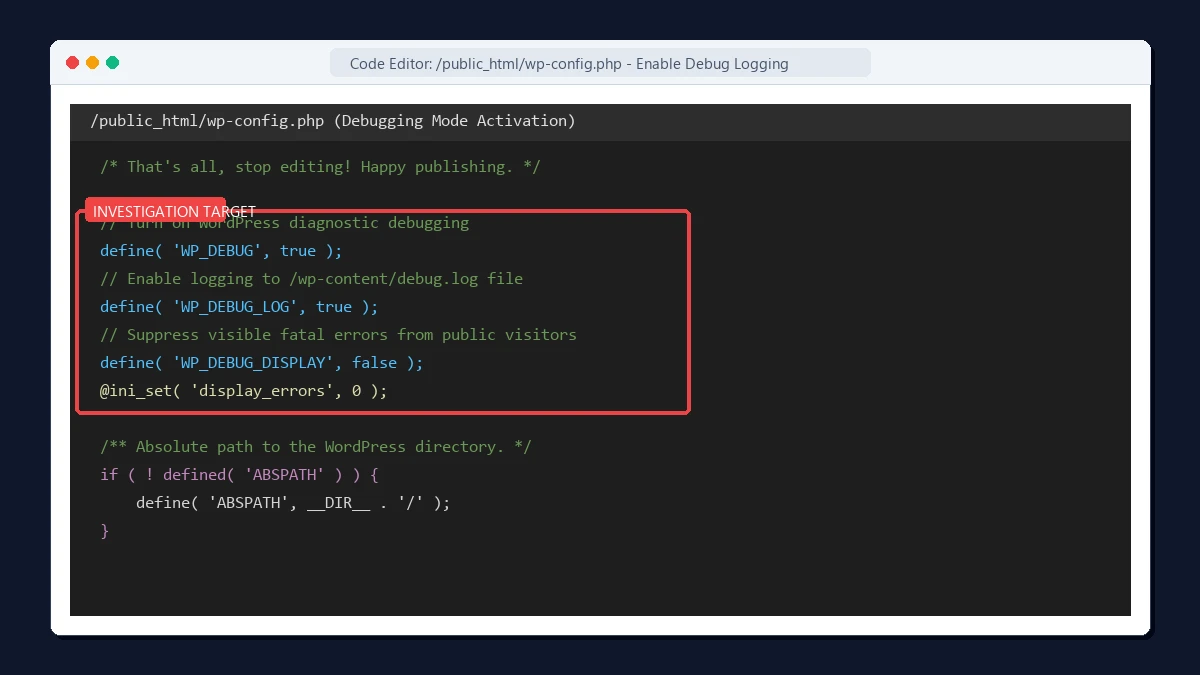
Place the following diagnostic code block directly above that comment line.
define( 'WP_DEBUG', true );
define( 'WP_DEBUG_LOG', true );
define( 'WP_DEBUG_DISPLAY', false );
@ini_set( 'display_errors', 0 );
Save the file and upload it back to your server. Keeping WP_DEBUG_DISPLAY set to false prevents sensitive server paths from appearing on public browser screens.
Step 2: Inspect /wp-content/debug.log for Fatal PHP Errors
To identify the specific culprit behind the crash, inspect the generated debug.log file located in /wp-content/ to read the exact PHP stack trace, filename, and line number that triggered the fatal error condition.
Once debugging mode is active, reload your broken WordPress site in a browser window. This action triggers the fatal error anew and forces WordPress to write diagnostic data.
Return to your file manager or SFTP client. Open the wp-content directory and locate the newly created debug.log file.
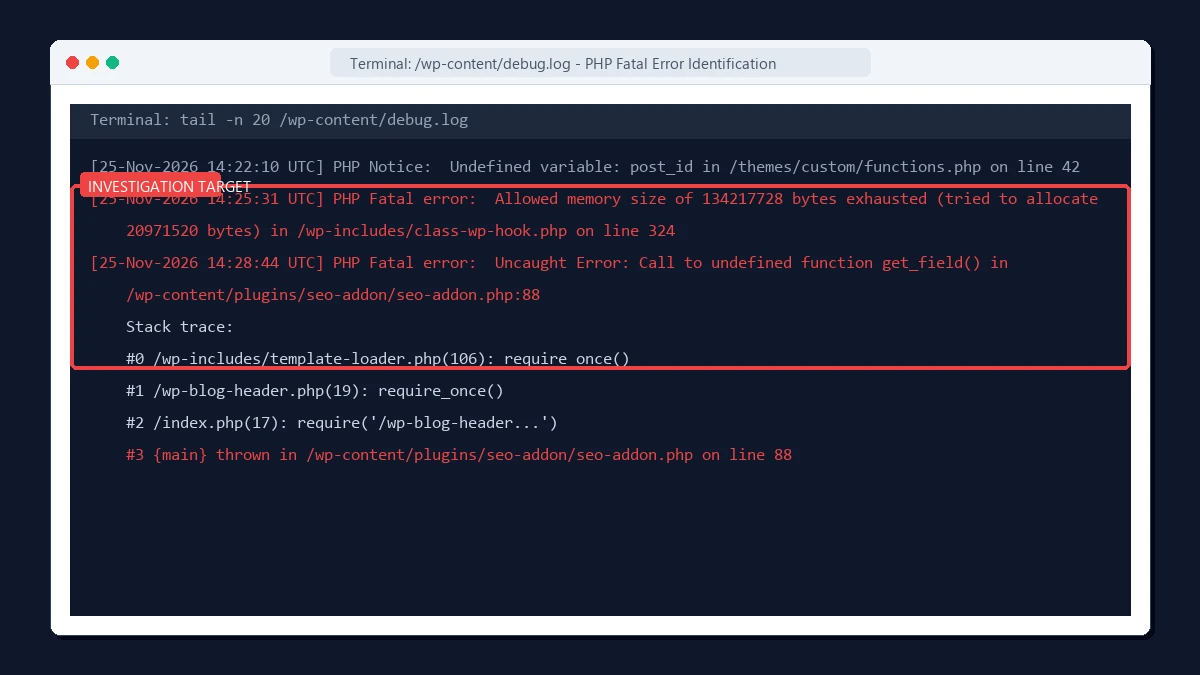
Open the log file and scroll to the bottom. Look for entries tagged with PHP Fatal error or Uncaught Error.
The error entry displays the exact file path and line number where execution failed. For example, a path pointing to /wp-content/plugins/seo-addon/ reveals that the SEO plugin caused the crash.
If the error indicates allowed memory size exhausted, proceed immediately to increasing your memory limits.
Step 3: Increase WordPress and PHP Memory Allocations
To resolve memory exhaustion crashes, increase the memory allocation threshold in wp-config.php by defining WP_MEMORY_LIMIT and WP_MAX_MEMORY_LIMIT to 256M so background processes and administrative queries receive sufficient operational overhead.
Default WordPress installations set a baseline memory limit of forty megabytes for single-site installs. Modern themes and complex plugins frequently exceed this minimal allocation.
Open your wp-config.php file once more in your text editor. Add the memory directives right after your database credentials.
define( 'WP_MEMORY_LIMIT', '256M' );
define( 'WP_MAX_MEMORY_LIMIT', '512M' );
If your web host restricts memory expansion via wp-config.php, adjust the limit within your server php.ini configuration.
memory_limit = 256M
Save changes and test your website. If memory exhaustion was the sole issue, your front-end pages and administrative dashboard will load immediately.
Step 4: Isolate Malfunctioning Plugins via SFTP
To eliminate rogue plugin conflicts when error logs are inconclusive, temporarily rename the wp-content/plugins directory via SFTP to deactivate all installed plugins simultaneously and confirm whether third-party code caused the white screen.
When multiple plugins interact unpredictably, disabling them collectively isolates the failure layer. Renaming the folder prevents WordPress from locating active plugin files, forcing a graceful reset.
Connect to your server using SFTP and navigate into the wp-content folder.
Rename the plugins directory to plugins_temp. Refresh your website in an incognito browser window.
If the site loads, a plugin is confirmed as the crash source. Rename the folder back to plugins.
Log in to your WordPress administrative dashboard. Go to the Plugins screen and activate each plugin one at a time until the White Screen of Death reoccurs, isolating the problematic extension.
Step 5: Activate a Default Theme via phpMyAdmin or SFTP
To eliminate theme-level syntax errors and corrupt template files, activate a default WordPress core theme like Twenty Twenty-Four by updating the template and stylesheet values directly inside your wp_options database table or renaming your active theme directory.
If custom code inside your active theme’s functions.php file contains a fatal syntax error, standard dashboard recovery remains blocked. Switching themes at the database layer bypasses broken theme files instantly.
Open phpMyAdmin from your hosting control panel. Select your WordPress database from the left navigation panel.
Click on the wp_options table. Run a search for the option names template and stylesheet.
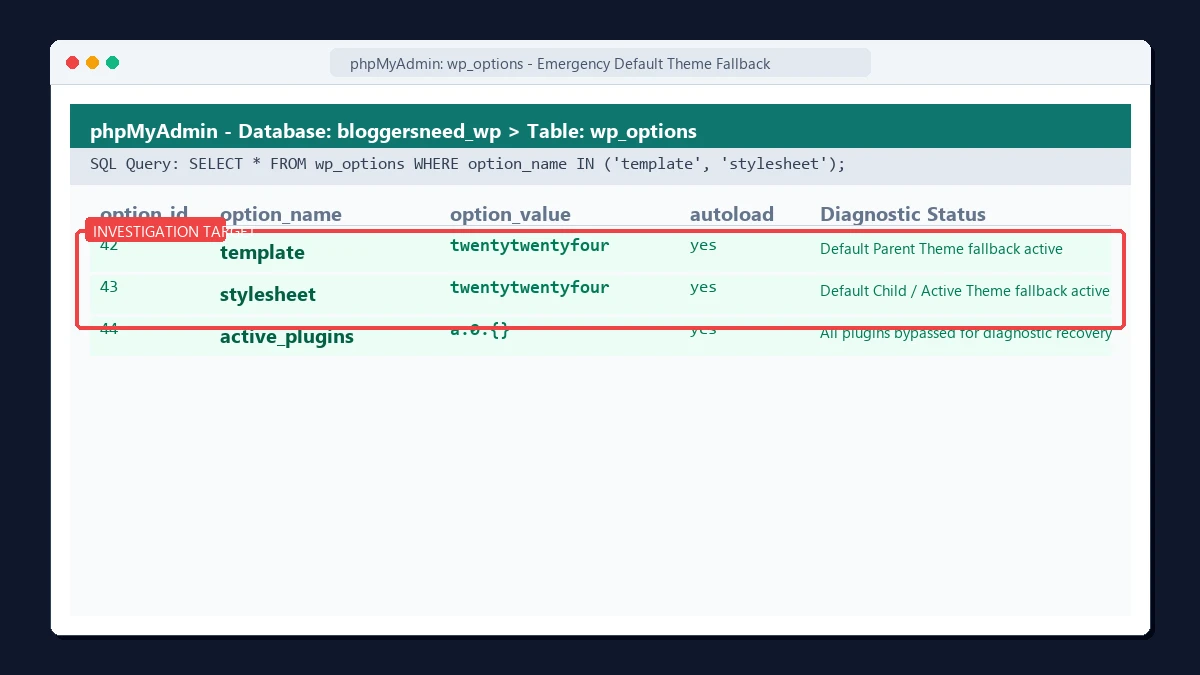
Edit both rows and replace your custom theme directory name with a default theme such as twentytwentyfour.
UPDATE wp_options SET option_value = 'twentytwentyfour' WHERE option_name IN ('template', 'stylesheet');
Save the query. Reload your website to verify that the default theme renders cleanly without fatal errors.
If your site also experiences database handshake failures, apply the credentials verification steps from our guide on how to fix error establishing a database connection in WordPress.
Frequently Asked Questions About the White Screen of Death
These practitioner answers explain the technical differences between blank screens, recovery emails, data loss risks, and prevention strategies.
Will fixing the White Screen of Death cause data loss on my website?
Resolving the WordPress White Screen of Death will not delete or alter your site database, posts, or media files because the failure stems strictly from execution-level PHP crashes rather than database corruption or file system deletion.
Your articles, comments, pages, and media attachments remain securely stored inside your MySQL database. Deactivating plugins or switching themes via SFTP merely stops problematic scripts from executing.
Why did I not receive a WordPress critical error recovery email?
Site owners frequently fail to receive WordPress recovery emails because standard hosting servers lack configured SMTP authentication, causing default PHP mail notifications to be rejected by spam filters or discarded by unauthenticated mail transfer agents.
To ensure reliable error delivery in the future, install a dedicated SMTP plugin configured with transactional email services like SendGrid or Postmark. This guarantees that crash notifications reach your administrative inbox.
Can a corrupted .htaccess file trigger the White Screen of Death?
A corrupted .htaccess file typically generates a 500 Internal Server Error rather than a pure White Screen of Death, but invalid rewrite syntax can halt server execution early enough to present as an unresponsive blank window.
To test this scenario, connect via SFTP and rename .htaccess to .htaccess_old. Generate a fresh default configuration by visiting Settings and Permalinks in your WordPress dashboard and clicking Save Changes.
How can I prevent the White Screen of Death during future updates?
You can prevent future White Screen of Death occurrences by testing all updates on staging environments first, enforcing strict memory allocations above 256M, deploying automated daily cloud backups, and checking plugin compatibility before executing updates.
Never apply major theme or core updates directly on production websites during peak traffic hours. Utilizing staging instances ensures that fatal code collisions are caught before affecting live visitors.

I’m Abdullah Prem, a passionate blogger with over 10 years of experience. I created BloggersNeed to produce high-quality, easy-to-understand articles, guides, and tutorials that help people start their blogging journey. Specializing in WordPress, Hosting, Themes, and online money-making strategies, I’ve been featured on leading tech platforms such as Tech.co, Cloudways, Business2Community, Leadpages, GoodFirms, and ShareThis. BloggersNeed.com