
Server Infrastructure & Gateway Recovery Protocol
The 502 Bad Gateway error in WordPress is an HTTP status code indicating that an edge reverse proxy or web server received an invalid or timed-out response from an upstream backend server.
To resolve this incident, identify whether the issue stems from PHP-FPM worker exhaustion, edge proxy timeouts, memory threshold spikes, or rogue theme scripts, and apply targeted configuration adjustments.
- Root Cause: Upstream PHP-FPM process crash, web server timeout, or conflicting plugin scripts.
- Network Layer: Edge proxy (Cloudflare, Nginx, or Apache) failed to receive valid origin headers.
- Primary Fix: Restart PHP service, raise execution timeouts, clear server-level cache, and disable rogue plugins.
- Resolution Window: Immediate site restoration within five to fifteen minutes of server tuning.
Encountering a 502 Bad Gateway screen halts all organic website traffic and administrative dashboard access. At BloggersNeed, our technical support engineers diagnose hundreds of production server crashes triggered by upstream gateway timeouts.
Unlike client-side 400-series errors, a 502 status signals an infrastructure breakdown between your edge proxy and origin web server. Your web server acts as a gateway and receives an invalid response from backend PHP processors.
This technical recovery guide explains the precise mechanics of 502 gateway failures. You will learn how to read server error logs, optimize PHP-FPM worker pools, and restore WordPress uptime without losing database integrity.
What Is a 502 Bad Gateway Error in WordPress?
A 502 Bad Gateway error in WordPress is an HTTP status code indicating that an edge server or reverse proxy received an invalid response from an upstream origin server while attempting to fulfill a visitor request, typically caused by PHP-FPM process crashes or execution timeouts.
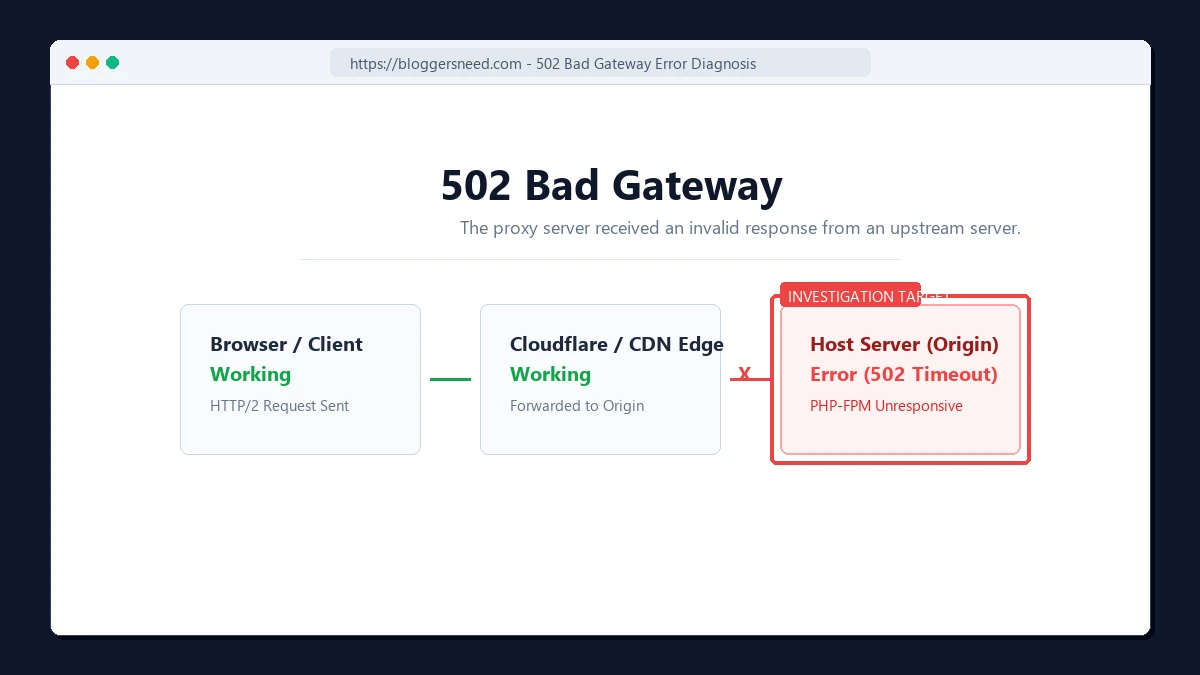
When a visitor navigates to your website, their browser connects to an edge web server like Nginx, Apache, or Cloudflare. This edge layer acts as a gateway proxy that routes dynamic requests to backend PHP processors.
Under normal conditions, PHP executes the WordPress core files, queries MySQL, and returns an HTML document. The gateway passes this payload back to the browser with an HTTP 200 OK header.
During a 502 event, the backend PHP processor crashes, runs out of execution time, or closes the network socket prematurely. The gateway server waits for a response, receives nothing, and returns status code 502.
Common Causes of the 502 Error in WordPress Sites
The common causes of the 502 Bad Gateway error in WordPress include PHP-FPM worker pool exhaustion, runaway database queries, strict server execution timeout thresholds, rogue third-party plugins, outdated firewall rules, and caching layer misconfigurations between edge CDNs and host origins.
The most frequent culprit on cloud VPS hosting is PHP-FPM worker saturation. When traffic spikes exceed configured worker pools, incoming requests queue up until FastCGI timeouts trip.
Another common cause involves runaway database queries. A poorly indexed WooCommerce query can tie up worker threads, producing symptom patterns similar to our guide on how to fix error establishing a database connection in WordPress.
Heavy background cron tasks also exhaust system resources. Large backup operations or automated import scripts can consume memory beyond established limits, mirroring issues covered in our analysis of how to fix the WordPress memory exhausted error.
Edge proxy caching services like Cloudflare can also generate 502 screens. If your hosting firewall blocks Cloudflare IP ranges after a server restart, Cloudflare displays a branded 502 Bad Gateway screen.
Step 1: Inspect Server Error Logs and PHP-FPM Status
To diagnose the exact source of a 502 error, inspect your server error logs via SSH or control panel to locate specific FastCGI upstream closed connection entries, identify failing PHP scripts, and confirm whether backend worker pools require immediate service restarts.
Never attempt random fixes without consulting raw server log data. The log files reveal the exact file, line number, and process responsible for the gateway failure.
Connect to your web server via SSH or open the file manager provided by your hosting dashboard. Navigate to your primary web server log directory.
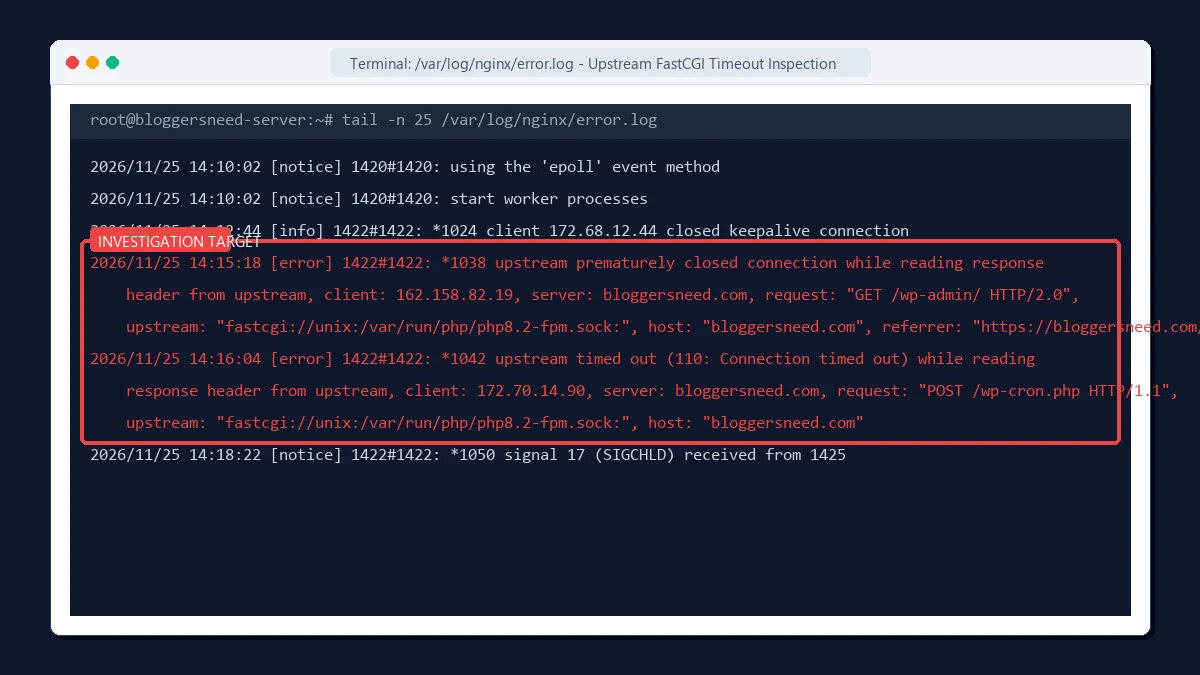
For Nginx installations, view recent log events using the tail utility.
tail -n 50 /var/log/nginx/error.log
Look for lines containing upstream prematurely closed connection or connection timed out. These entries indicate that FastCGI terminated before generating headers.
For Apache configurations running mod_proxy_fcgi, inspect the Apache error log.
tail -n 50 /var/log/apache2/error.log
If the error log points to PHP service failure, restart PHP-FPM to release frozen worker threads.
sudo systemctl restart php8.2-fpm
Step 2: Increase PHP Execution Limits and Timeouts
To eliminate gateway timeouts on resource-intensive operations, increase PHP execution time and memory limits inside your php.ini, Nginx configuration, and wp-config.php files to prevent the web server from terminating long-running backend processes prematurely.
Default server configurations often enforce strict thirty-second execution limits. Complex operations like database migrations or bulk product imports frequently exceed this threshold, triggering 502 drops.
Open your server php.ini configuration file using your preferred text editor.
sudo nano /etc/php/8.2/fpm/php.ini
Locate the execution and memory directives and adjust values to accommodate demanding background processes.
max_execution_time = 300
max_input_time = 300
memory_limit = 256M
Next, update your Nginx site configuration to match these execution timeouts. Edit your virtual host file located in /etc/nginx/sites-available/.
Add proxy and FastCGI timeout directives inside the location block handling PHP files.
fastcgi_read_timeout 300;
proxy_read_timeout 300;
Save your configuration edits and reload Nginx to apply changes.
sudo nginx -t && sudo systemctl reload nginx
Step 3: Tune PHP-FPM Process Manager Worker Pools
To stop recurring 502 errors during traffic surges, tune the PHP-FPM process manager configuration by increasing maximum children and spare server allocations in your www.conf pool file so your origin server handles concurrent visitor requests without queue starvation.
When high volumes of simultaneous visitors land on your site, default PHP-FPM worker pools quickly become saturated. Incoming connections stall, forcing Nginx to return a 502 gateway error.
Open the PHP-FPM pool configuration file.
sudo nano /etc/php/8.2/fpm/pool.d/www.conf
Review the process manager settings. If configured as dynamic, ensure children limits match available system RAM.
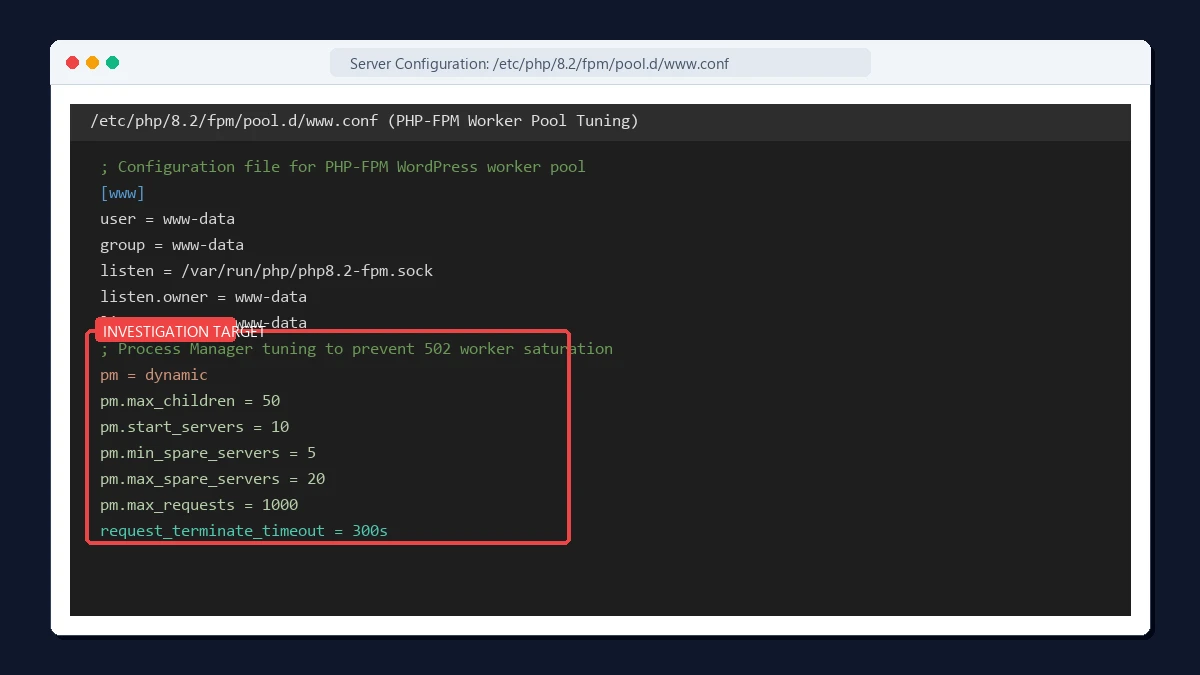
Calculate your maximum children setting based on average process size. A typical WordPress PHP worker consumes forty to sixty megabytes of memory.
On a server with four gigabytes of available RAM for PHP, allocate fifty workers.
pm = dynamic
pm.max_children = 50
pm.start_servers = 10
pm.min_spare_servers = 5
pm.max_spare_servers = 20
pm.max_requests = 1000
Restart the PHP-FPM service to initialize the expanded worker pool.
sudo systemctl restart php8.2-fpm
Step 4: Deactivate Conflicting Plugins and Themes via SFTP
To determine if a rogue plugin or theme script caused your gateway failure, temporarily deactivate your plugins folder via SFTP or File Manager by renaming wp-content/plugins to plugins.deactivated to isolate buggy third-party code and restore administrative access.
Faulty plugin updates or unoptimized database query loops frequently freeze PHP worker processes. Because the admin dashboard is inaccessible during a 502 error, deactivation requires file system access.
Log in to your server using an SFTP client or hosting file manager. Open the wp-content directory.
Locate the plugins folder and rename it to plugins_deactivated. This action forces WordPress to disable all active plugins without deleting configuration data.
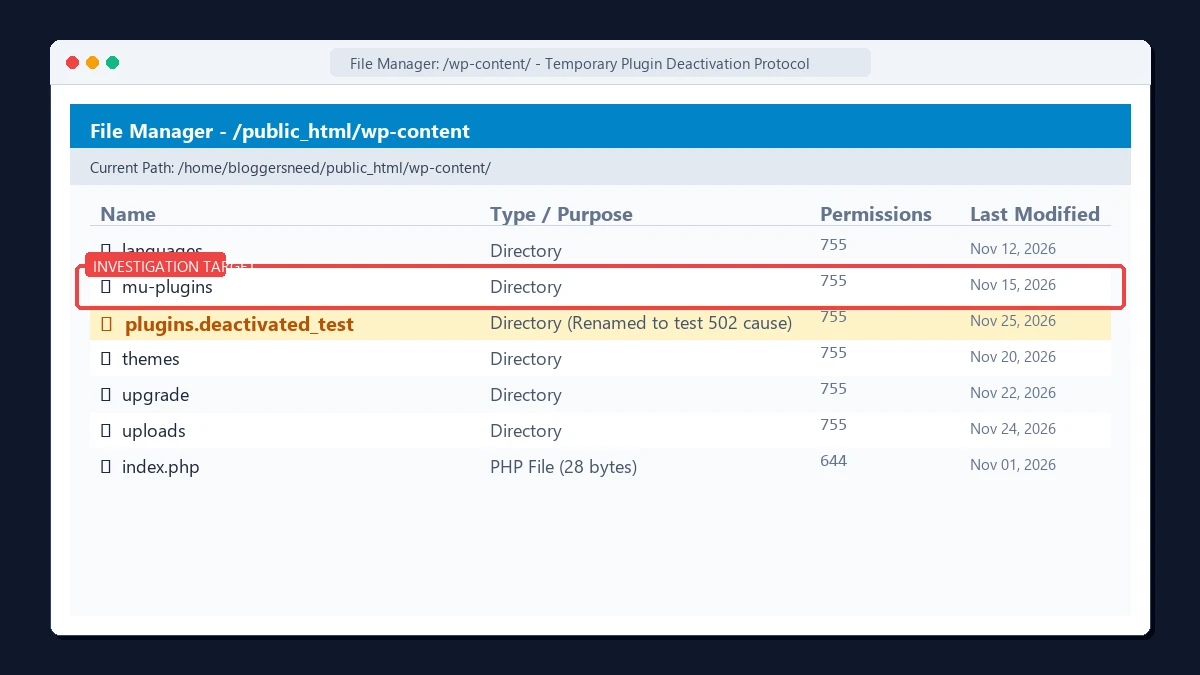
Reload your website in an incognito browser window. If the 502 error vanishes, a plugin is confirmed as the root cause.
Rename the folder back to plugins. Log in to your WordPress admin panel and activate plugins individually until the 502 error reappears, identifying the faulty script.
If rogue upload scripts or unauthorized backdoors are present, apply the security rules detailed in our tutorial on how to prevent PHP execution in WordPress uploads.
Step 5: Purge Edge CDN and Server Caching Layers
To clear corrupt upstream responses cached by reverse proxies, purge all server-side caches and edge CDN networks including Cloudflare, Redis, and Varnish so your proxy layers request fresh, error-free HTML pages directly from your origin server.
Edge proxy networks like Cloudflare often cache a 502 error response for a brief duration. Even after resolving the origin server failure, visitors may continue seeing cached error screens.
Log in to your Cloudflare dashboard. Select your domain name and navigate to the Caching section.
Click Configuration, find the Purge Cache module, and select Purge Everything. This wipes all edge nodes globally.
If you use server caching layers like Varnish or FastCGI microcaching, clear them via command line.
sudo rm -rf /var/run/nginx-cache/*
If Redis object caching is active on your host, flush the cache store.
redis-cli flushall
Test your site response by sending an HTTP request directly to your origin IP using curl, bypassing external CDN layers to confirm healthy header responses.
curl -I -H "Host: bloggersneed.com" https://192.0.2.1/
Frequently Asked Questions About the 502 Bad Gateway Error
These practitioner answers explain the technical differences between gateway timeouts, browser cache interactions, Cloudflare edge failures, and long-term search crawl stability.
What is the difference between a 502 Bad Gateway and a 504 Gateway Timeout?
A 502 Bad Gateway error indicates the edge proxy received an invalid or corrupt response from the upstream backend server, whereas a 504 Gateway Timeout signifies that the upstream server took too long to respond before the proxy timer expired.
In practice, 502 errors typically represent process crashes or socket closures. In contrast, 504 errors reflect long-running database queries, slow external API calls, or server overloads where processes continue executing beyond allowable time limits.
Can browser caching cause a persistent 502 Bad Gateway error?
Local browser caches rarely generate a 502 error independently because the status code originates strictly from network proxy layers, but browsers may cache stale 502 responses, requiring a hard refresh or private browsing session to verify live resolution.
To rule out browser caching after applying server fixes, perform a hard refresh using Control and F5 on Windows or Command, Shift, and R on Mac. You can also test your URL using private incognito windows.
Why does Cloudflare show a 502 Bad Gateway screen?
Cloudflare displays a branded 502 Bad Gateway screen when its edge network fails to establish a valid connection with your host origin server, typically triggered by web server crashes, hosting firewall blocks, or server downtime at the host data center.
When this happens, the Cloudflare status page highlights whether the breakdown occurred at the Cloudflare edge or your hosting origin. If the origin server indicator displays an error icon, troubleshooting must occur on your host server.
Does a 502 Bad Gateway error harm my WordPress SEO rankings?
A temporary 502 error lasting a few hours will not permanently harm SEO rankings, but persistent gateway downtime extending beyond twenty-four hours causes search engine crawlers to demote rankings and temporarily drop affected URLs from search indexes.
Googlebot interprets extended 502 errors as site unavailability. If search crawlers encounter gateway failures across multiple crawl attempts, they reduce crawl frequency and may replace your search snippet with an error warning.

I’m Abdullah Prem, a passionate blogger with over 10 years of experience. I created BloggersNeed to produce high-quality, easy-to-understand articles, guides, and tutorials that help people start their blogging journey. Specializing in WordPress, Hosting, Themes, and online money-making strategies, I’ve been featured on leading tech platforms such as Tech.co, Cloudways, Business2Community, Leadpages, GoodFirms, and ShareThis. BloggersNeed.com